How to duplicate a Timeline view in ClickUp
Here is how to duplicate a timeline view in clickup
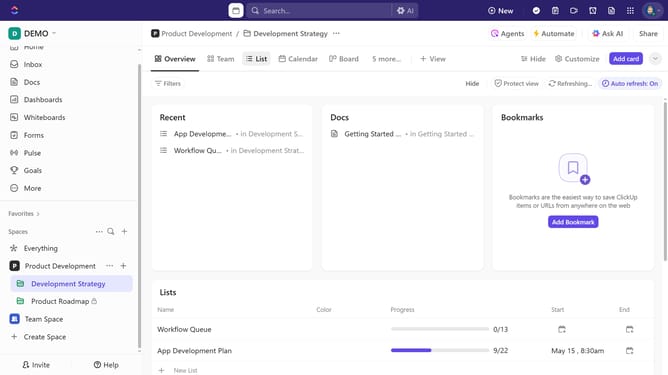
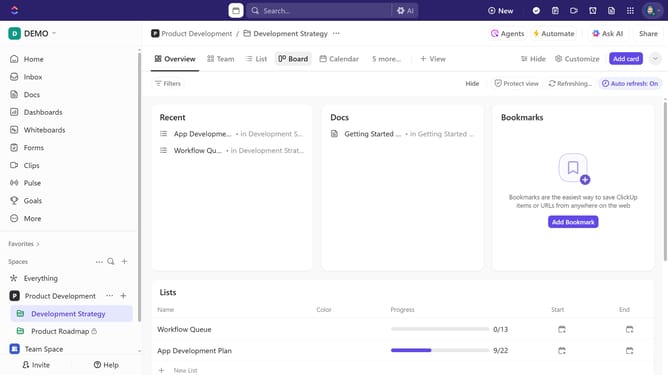
- First, navigate to the Timeline view from the Views Bar
- Next, click on the settings icon in the top toolbar to access view customization options
- Then click on "Layout options" in the customize view menu
- Click the "Duplicate view" option in the layout settings
- Finally select "Timeline" from the view type dropdown menu
- You have successfully duplicated your Timeline view
Why should you duplicate a Timeline view in ClickUp
ClickUp is an all-in-one productivity platform designed to streamline team workflows and task management.
Duplicating a Timeline view in ClickUp allows project managers to effortlessly replicate existing timelines for new projects, saving valuable time and maintaining consistency. This feature ensures that successful frameworks and schedules can be reused, enhancing efficiency and project planning.
By leveraging duplicated Timeline views, teams can focus more on execution rather than setup, promoting swift project kick-offs and seamless collaboration among team members.
Last update