How to add a Time Estimate column to a List or Table view in ClickUp
Here is how to add a time estimate column to a list or table view in clickup
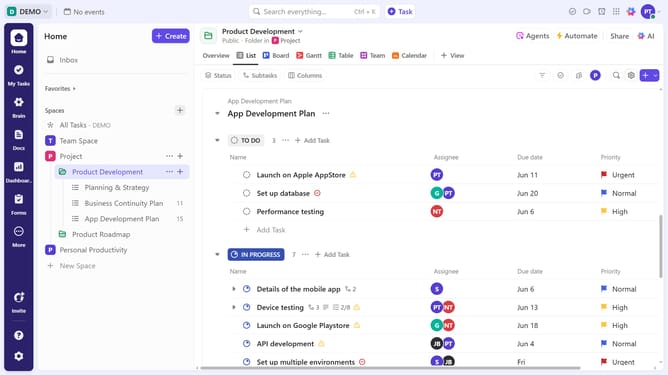
- First navigate to your List or Table view from the Views Bar at the top
- Next in the top right corner above the task table, click the plus (+) icon to add a new column
- In the right panel, click on the "Create field" search box and search for "Time estimate"
- Finally, enable the "Time estimate" field by clicking the toggle switch next to it
- The Time Estimate column will now appear in your view
Why should you add a Time Estimate column to a List or Table view in ClickUp
ClickUp is a versatile project management tool designed to simplify and enhance workflow efficiency.
By adding a Time Estimate column to a List or Table view in ClickUp, users gain a clear picture of the time required for each task. This feature fosters better time management by allowing teams to allocate resources effectively and set realistic deadlines.
Furthermore, understanding time estimates helps in tracking project progress and planning ahead, ensuring that projects stay on course and within budget. This actionable insight promotes productivity and streamlined operations within any team.
Last update