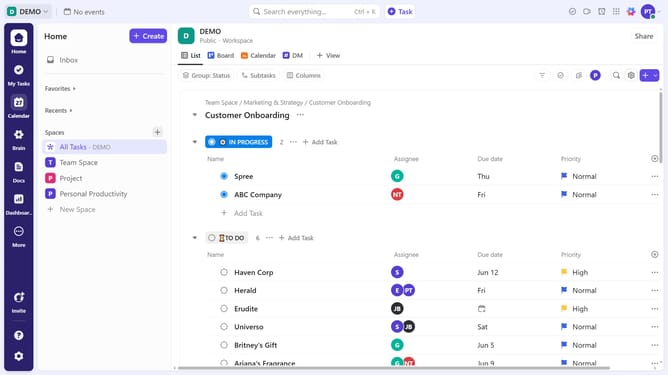
How to add a start date from Calendar view in ClickUp
Here is how to add a start date from calendar view in clickup
- First navigate to Calendar view from the top navigation menu
- Next click the "Unscheduled and overdue tasks" on the right
- Next click on the task for which you want to set a start date
- Finally drag and drop it onto a specific day to set both a start and due date
Why should you add a start date from Calendar view in ClickUp
ClickUp is a versatile productivity tool designed to simplify project management by integrating all your tasks and collaborations in one place.
One standout feature of ClickUp is the ability to easily add a start date from the Calendar view.
This feature allows users to visually plan and organize tasks by setting clear timelines, helping to maintain focus and enhance time management.
By utilizing this capability, teams can align their schedules more effectively, leading to improved workflow and timely project completions.
Last update