How to apply the Grow enter animation to a block on Pitch
Here is how to apply the grow enter animation to a block on pitch
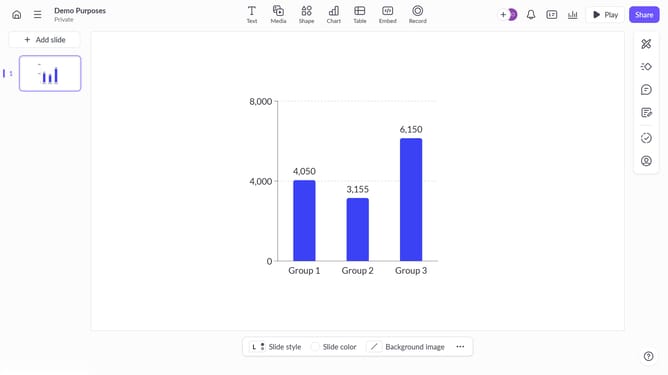
- First, open the presentation containing the block you want to animate
- From the left sidebar, select the slide containing the block
- Next, select the block you want to animate (such as a text block, image, shape, or other content block)
- In the right sidebar, click on the "Animate" option
- Then, select the "Enter" tab
- Finally, select "Grow" from the available animation options
Why should you apply the Grow enter animation to a block on Pitch
Pitch is an innovative platform designed to enhance your presentations through seamless collaboration and creativity.
One exciting feature on Pitch is the Grow enter animation, which adds a dynamic flair to your presentation blocks. With this animation, blocks gradually increase in size as they appear, capturing attention and engaging your audience effectively.
Utilizing the Grow enter animation not only makes your content visually appealing but also aids in emphasizing key points, ensuring that your message is memorable and impactful.
Last update