How to add text field in board view in Asana
Here is how to add text field in board view in asana
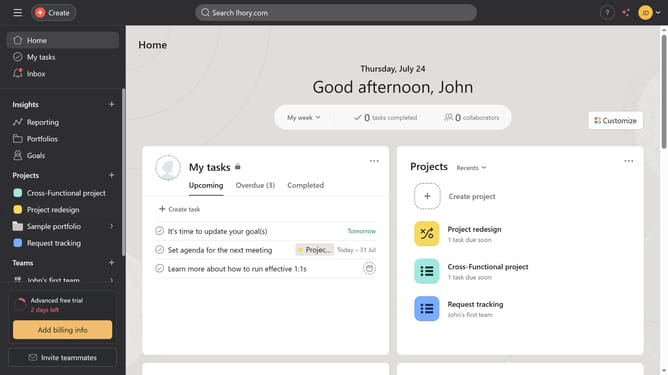
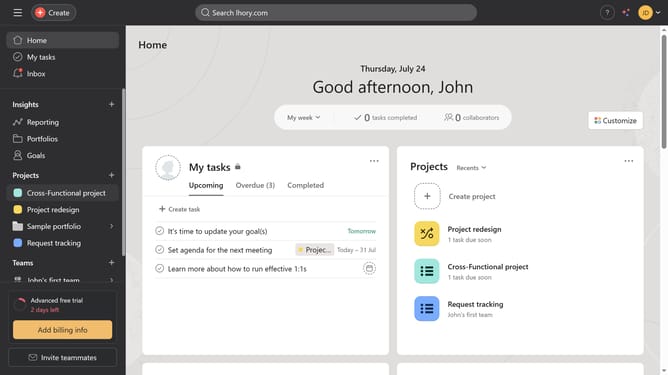
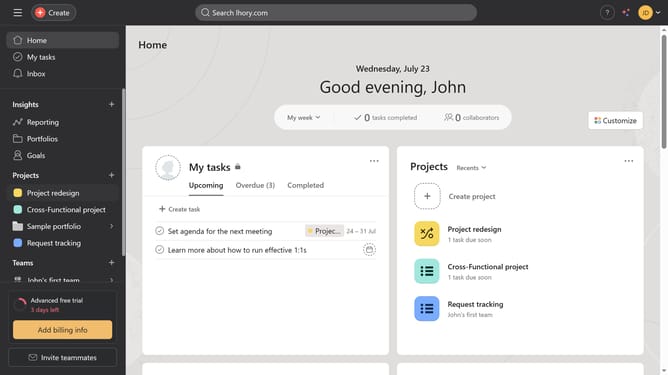
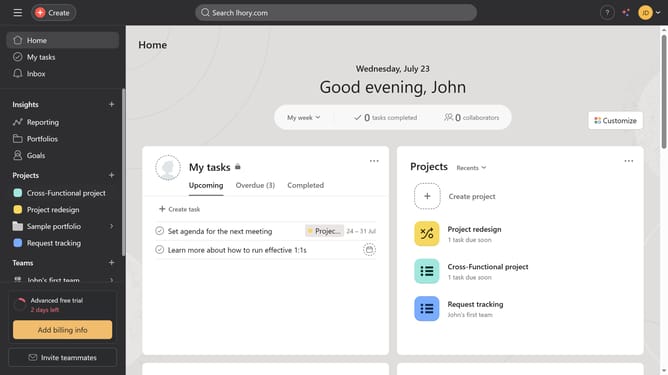
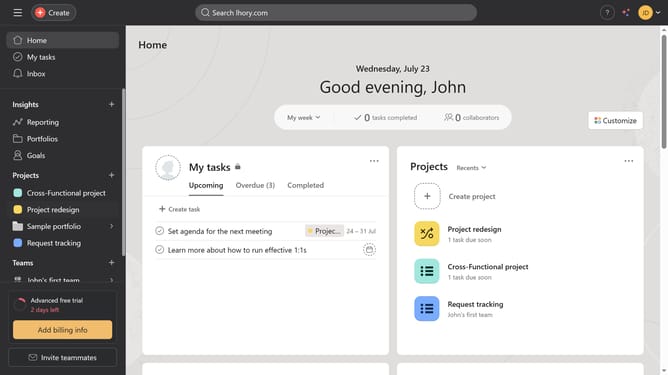
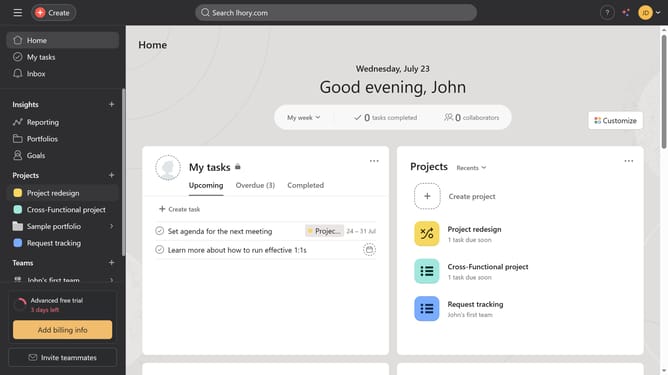
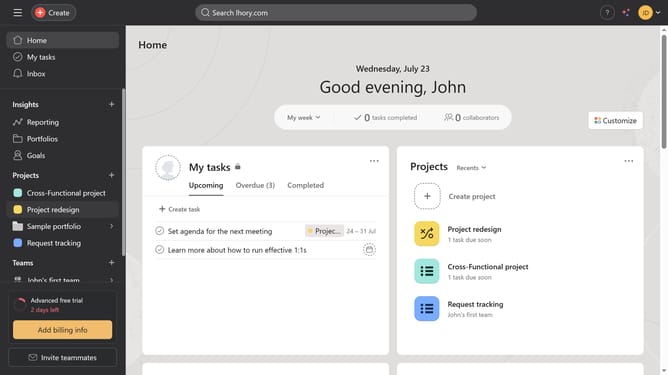
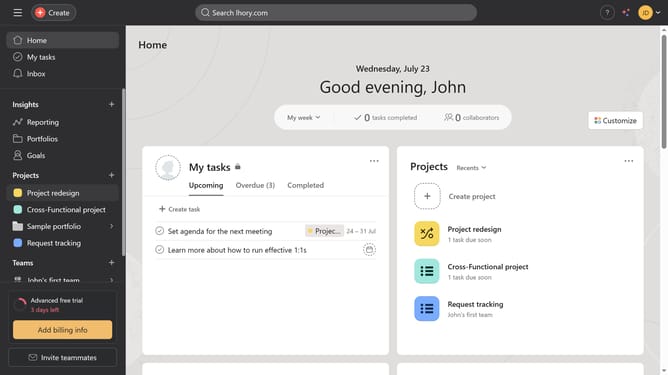
- First click on a project in the left sidebar Projects menu
- Then click on the "Board" tab in the top navigation menu
- Next click on the "Customize" button in the top-right corner
- Then click on the "Fields" option in the customization sidebar
- Next click on the "Add" button in the Fields section
- Then click on "Create new" in the Add field dialog
- Next click on the "Field type" dropdown menu
- Then select "Text" from the field type options
- In the field title input, click to enter text
- Type in the desired name for your text field in the field title input
- Finally click the "Create field" button to add the new text field
Why should you add text field in board view in Asana
Asana is a powerhouse tool designed to streamline task management and boost team productivity.
Adding a text field in board view within Asana allows for customized task descriptions that enhance clarity and communication. This feature gives teams the flexibility to tailor task information, ensuring every detail is captured appropriately.
Utilizing text fields bolsters collaboration by offering a dedicated space for notes, updates, or specific instructions, allowing team members to grasp task requirements swiftly and efficiently.
Last update