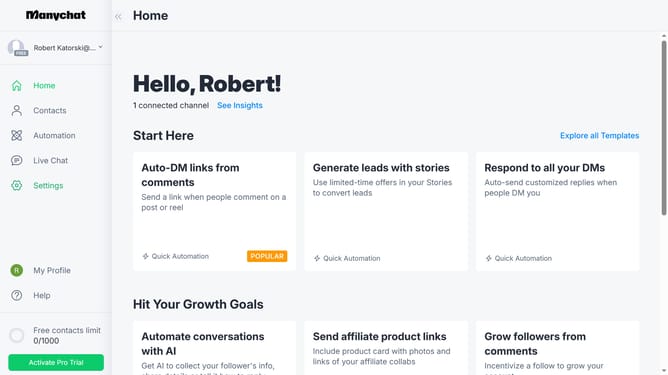
How to add an assign conversation action in Manychat
Here is how to add an assign conversation action in manychat
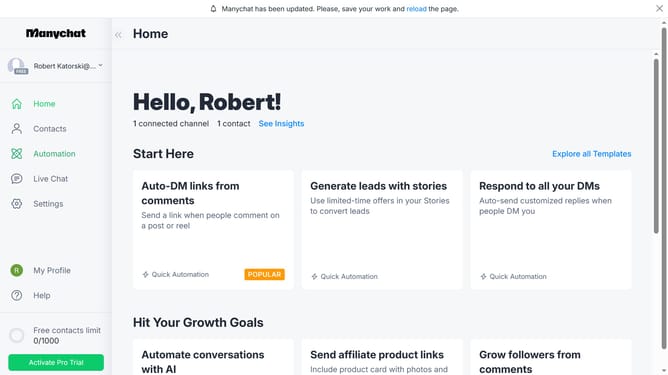
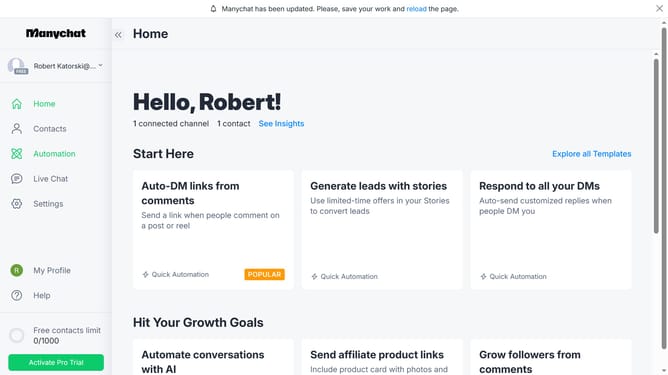
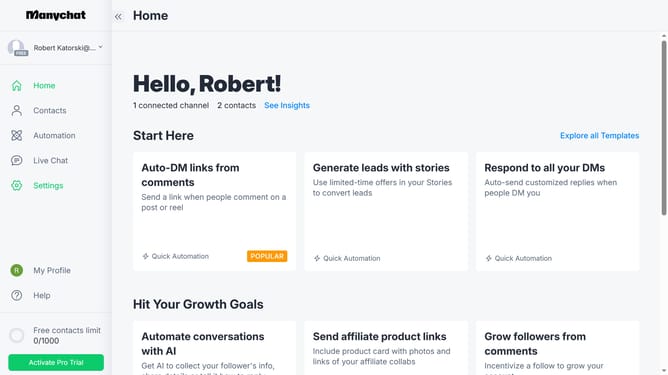
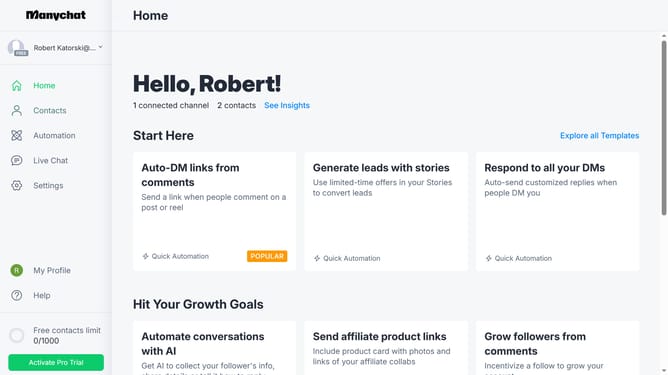
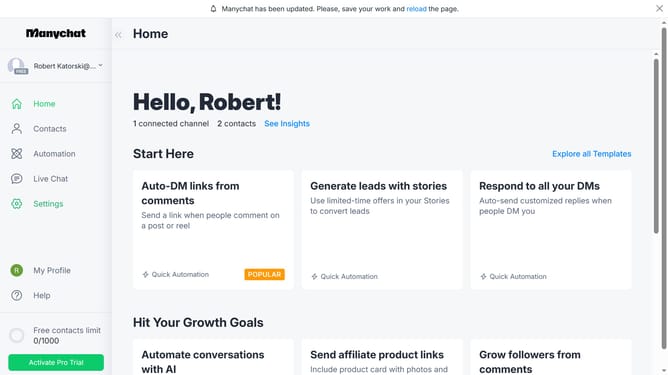
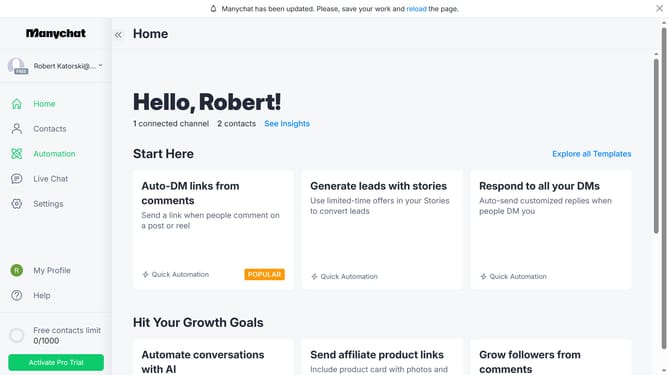
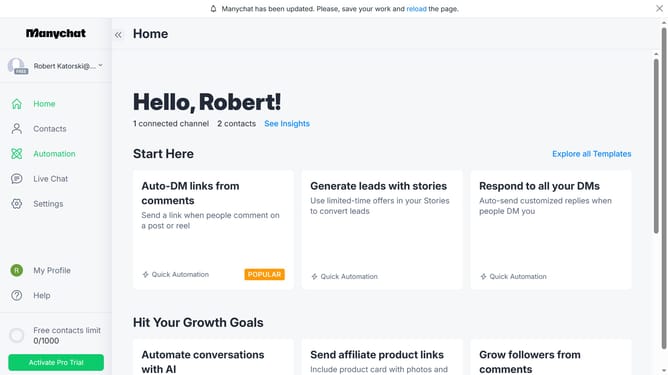
- First click on the "Automation" option in the left sidebar menu
- Then click an automation from the automation list
- Click the "+" button in the top-right corner to add a new action
- Scroll down in the pop up menu
- Click on "Actions" button under the logic section
- Click on the "+ Action" button in the Actions configuration panel
- In the actions menu, select the "Live Chat" category
- Choose "Assign conversation" from the Live Chat options
- Click on the dropdown to "Choose a team member or a group"
- Finally select a team member or a group from the Agents list
Why should you add an assign conversation action in Manychat
Manychat is a versatile automation platform designed to streamline communication through chatbots on various messaging platforms.
The "Assign Conversation" feature in Manychat empowers businesses by directing conversations to the right team members effortlessly. This ensures that customer queries are addressed by the best-suited personnel, enhancing response accuracy and efficiency.
Utilizing this feature can lead to improved customer satisfaction and smoother workflow as team members can manage conversations based on expertise, resulting in a more personalized customer experience.
Last update