How to add an anchor block to a website in Mailerlite
Here is how to add an anchor block to a website in mailerlite
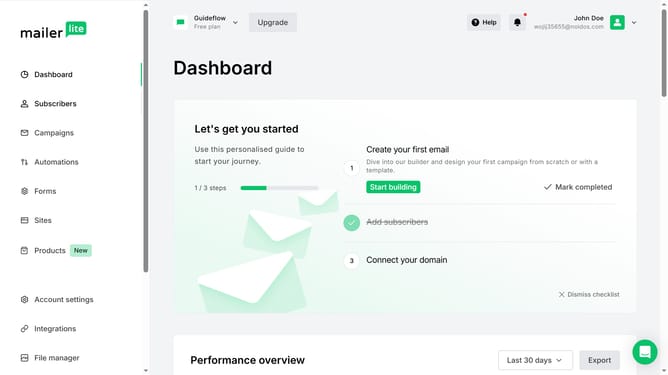
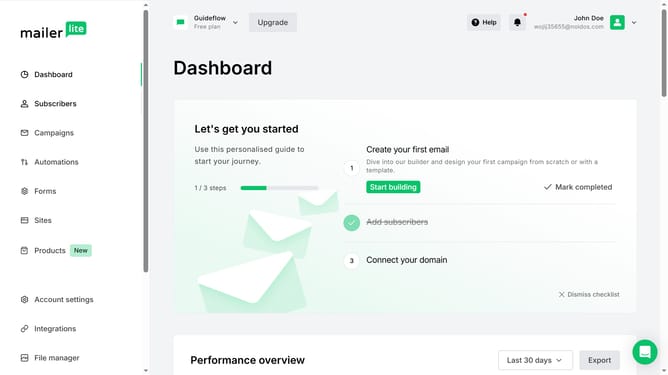
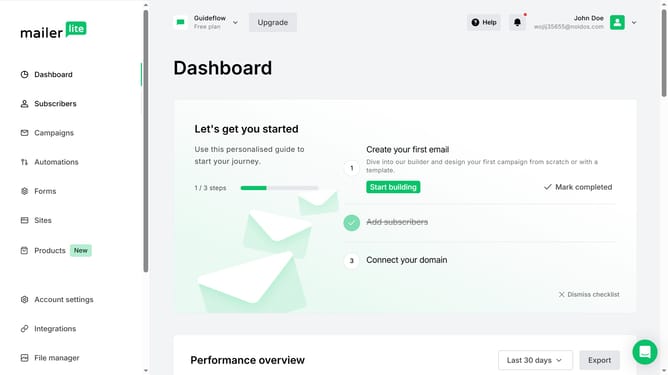
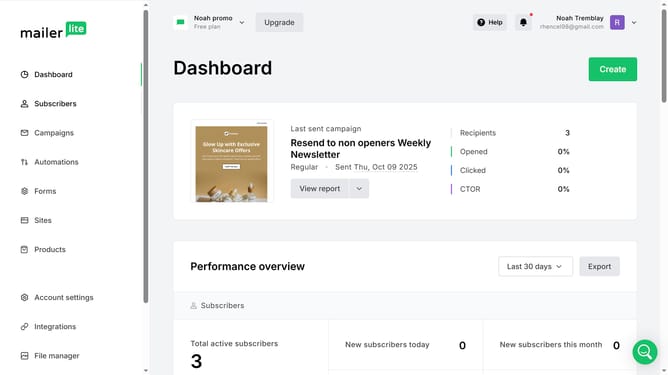
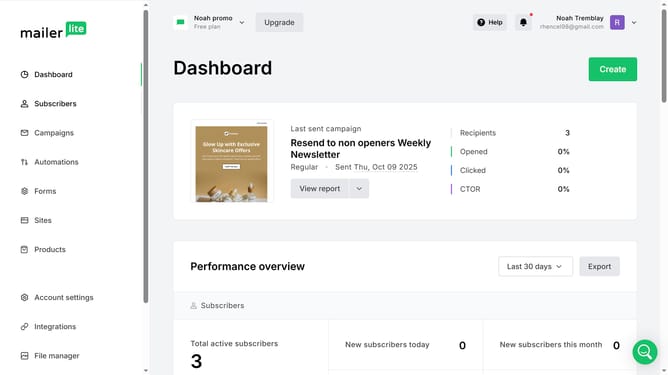
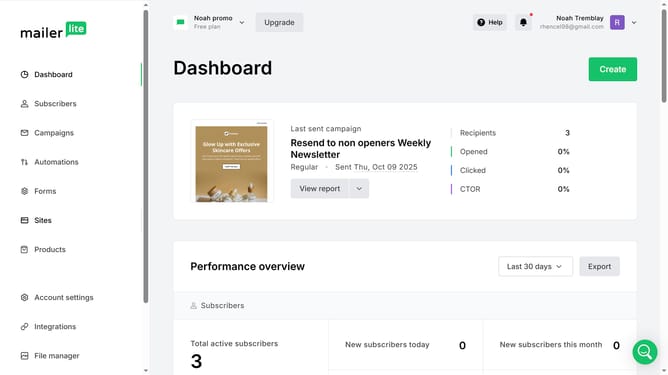
- First click on the "Sites" option in the left sidebar menu
- Then click on the "Websites" tab in the Sites section
- Click the "Edit" button next to the website where you want to add an anchor block to
- Select a page under Primary Navigation where you want to add the html code block
- Select the "Blocks" tab in the top menu bar
- Scroll down in the Blocks section
- Click and drag the "Anchor" block from the Content section onto your website’s main content area
- Next click on the block you just added to open the editing panel
- Edit the information based on your preference using the right sidebar panel
- Finally click the "Save and update" button in the top toolbar
Why should you add an anchor block to a website in Mailerlite
MailerLite is an intuitive email marketing platform designed to simplify your marketing efforts.
Adding an anchor block to a website within MailerLite offers seamless navigation for users. This feature connects content efficiently, allowing visitors to jump directly to relevant sections, enhancing user experience dramatically.
By streamlining user navigation, website engagement increases, ensuring visitors find information effortlessly, potentially boosting conversion rates.
Last update