How to add a scripting extension to a base in Airtable
Here is how to add a scripting extension to a base in airtable
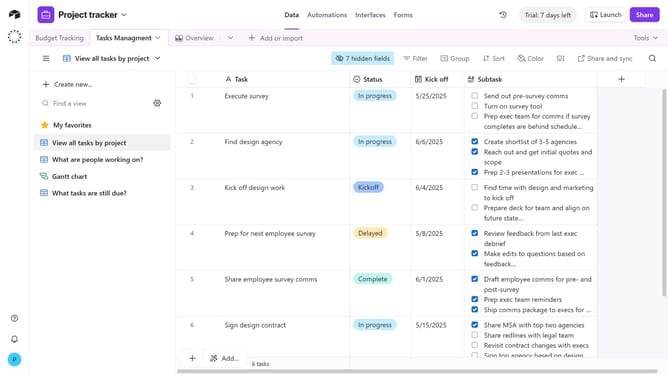
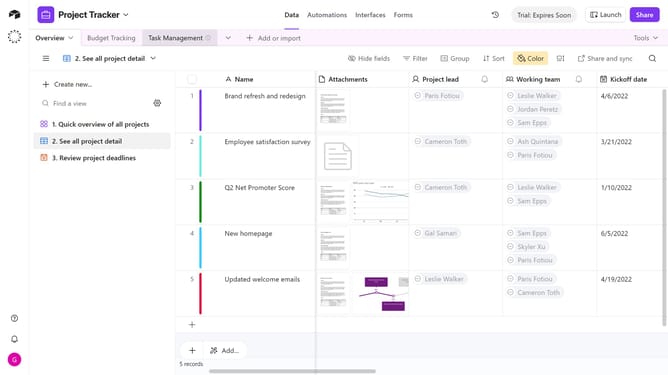
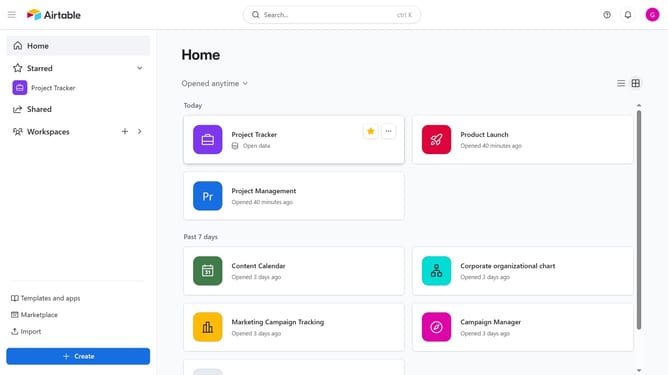
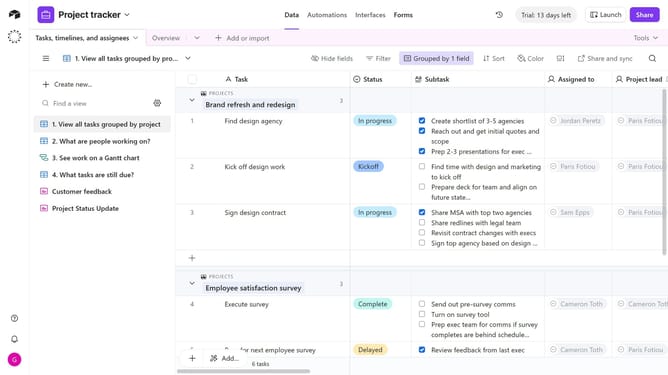
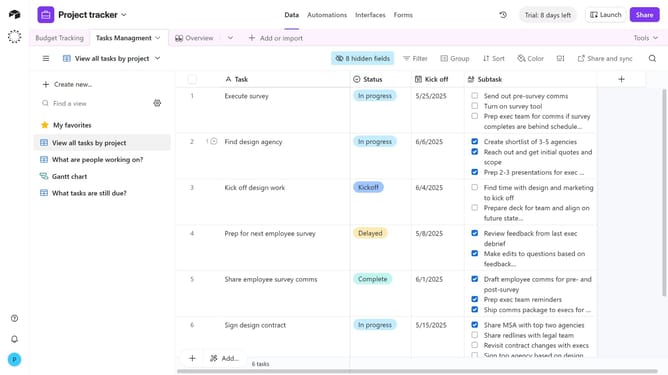
- First, open the base where you want to install the scripting extension
- Next click on the "Tools" dropdown menu in the top-right corner
- Click on "Extensions" option in the tools menu
- Then click the "Add an extension" button in the extensions panel
- Click on the search box and type "Scripting" to find the extension
- Click the "Add" button next to the Scripting extension
- In the dashboard selection dialog, open the dropdown and choose a dashboard
- Next click “Add extension” to confirm the installation.
- Click the "Get started" button in the welcome screen
- Finally choose either “Start from scratch” or “Start from example”
- You have successfully added the Scripting extension to your base. You can now start writing and running scripts
Why should you add a scripting extension to a base in Airtable
Airtable elegantly combines the functionality of a spreadsheet with the power of a database to streamline your project management and organization.
Adding a scripting extension to a base in Airtable can significantly enhance productivity by allowing custom automation and tailored task solutions.
This feature creates opportunities for advanced manipulations of your data, catering to specific needs without leaving the platform.
With these capabilities, users can effortlessly automate repetitive tasks, ensuring efficient workflows and fostering innovation.
Last update