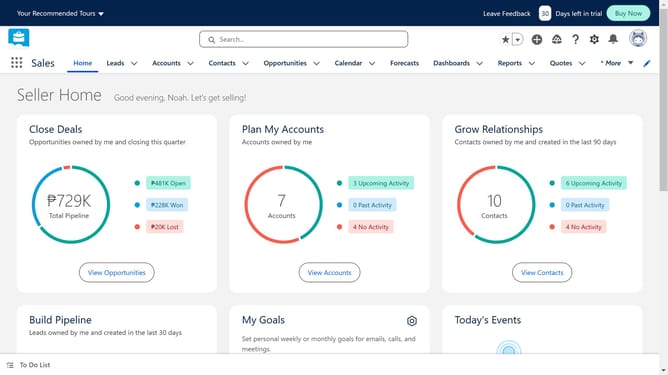
How to add a price book entry in Salesforce
Here is how to add a price book entry in salesforce
- First click on the app launcher icon in the top-left corner of the screen
- In the app launcher search box, click and type your search
- Type 'Price' in the app launcher search box
- Click on the 'Price Books' option from the search results
- Click the 'New' button in the top-right corner of the price books list view
- Click in the 'Price Book Name' text field
- Click the 'Active' checkbox to enable the price book
- Click the 'Save' button to create the price book
- Click on the 'Related' tab in the price book detail view
- Click the 'Add Products' button in the Price Book Entries section
- Select the products you want to add
- Click the 'Next' button to proceed with adding the selected product
- Set the specific price for this product within this particular price book
- Click the 'Save' button to save the price book entry
Why should you add a price book entry in Salesforce
Salesforce is a powerful CRM platform designed to streamline business workflows and enhance customer relationships.
Adding a price book entry in Salesforce enables businesses to manage their product pricing effectively, ensuring that sales teams have easy access to accurate pricing information.
This feature is crucial for maintaining consistency across sales activities, improving team efficiency, and ultimately driving revenue growth through better alignment and collaboration.
By centralizing price management, Salesforce helps businesses respond quickly to market changes and customer needs.
Last update