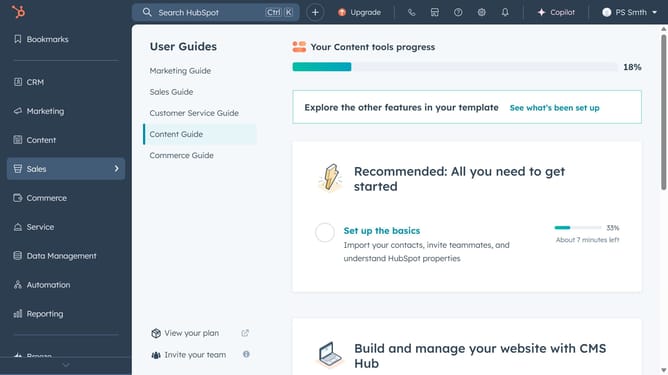
How to add a new report to your dashboard in HubSpot
Here is how to add a new report to your dashboard in hubspot
- First click on the Reports icon in the left sidebar
- Then click on the "Dashboards" item in the expanded menu
- Next click on the dashboard title dropdown in the top left corner
- Select the specific dashboard you want to add a new report to
- Now click on the "Add report" button in the top right corner
- From the dropdown menu, select "From saved reports" or "Create report"
- If you choose "From saved reports", then select a saved report
- Click on "Add to dashboard" in the top menu
- Next click on "Add to dashboard" button to finalize
- Alternatively, click on "Create report" to create a new report
- Next, filter to find a template, select a data source and visualization type
- Then select the report template that best fits your needs
- In the modal window, click on the "Save report" button
- Next in the right panel, select "Add to existing dashboard" and choose a dashboard from the dropwn menu
- Finally, click on "Save & add" button to create the new report
- You have now successfully created and added a new report to your dashboard
Why should you add a new report to your dashboard in HubSpot
HubSpot is a comprehensive platform designed to help businesses grow by integrating marketing, sales, and service tools.
Adding a new report to your dashboard in HubSpot allows you to customize the data you see, keeping essential metrics at your fingertips.
With tailored reports, you can efficiently track performance, identify trends, and make informed decisions that drive your business forward.
This feature not only enhances your analytical capabilities but also empowers teams with real-time insights, fostering a data-driven culture.
Last update