How to show custom task IDs in List view in ClickUp
Here is how to show custom task ids in list view in clickup
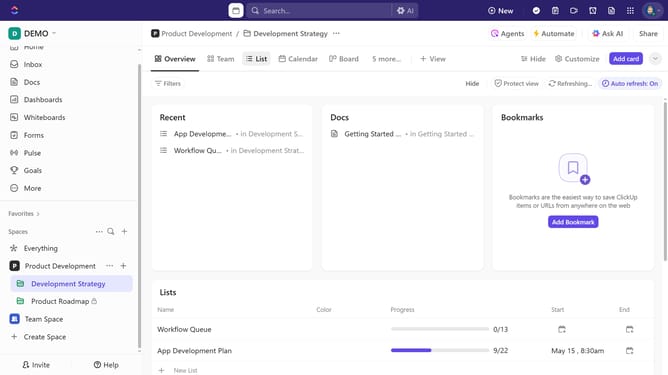
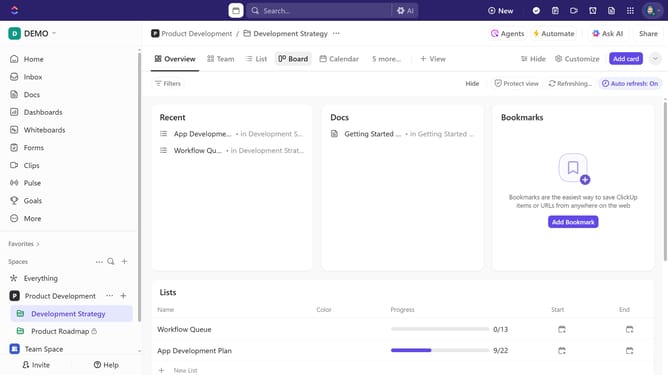
- First open any List view that contains tasks with custom task IDs
- Next click the "+" icon to add a column
- Then enter "Custom Task ID" in the search field of the Create field dialog
- Finally enable the "Custom Task ID" field in the Fields panel
Why should you show custom task IDs in List view in ClickUp
ClickUp is a versatile project management tool designed to streamline productivity and collaboration.
One of its dynamic features is the ability to show custom task IDs in List view, adding an extra layer of organization.
Having custom task IDs visible helps teams quickly identify and reference tasks, significantly improving workflow and communication.
This feature enhances the overall user experience by allowing for easy task management and precise tracking, making it an invaluable asset for teams seeking efficiency.
Last update