How to set default time tracking settings for a Space in ClickUp
Here is how to set default time tracking settings for a space in clickup
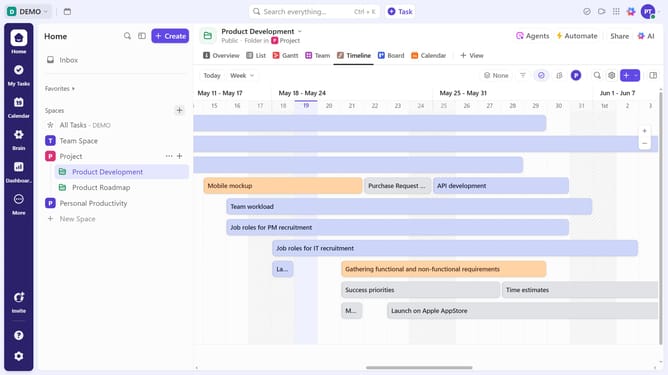
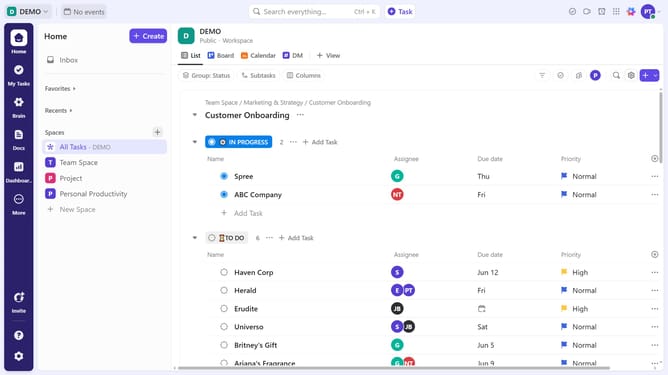
- First, locate the Space where you want to set default time tracking settings
- Next hover over the space and click the "more options" (three dots) next to it
- Select "Space settings" from the dropdown menu
- Then click on "Billable Time Tracking" option in the Space settings submenu
- Finally from the time tracking options dropdown, choose Billable, Non-billable, or Use Workspace settings based on your needs
Why should you set default time tracking settings for a Space in ClickUp
ClickUp is a dynamic platform designed to streamline project management and enhance productivity.
Setting default time tracking settings for a Space in ClickUp ensures consistency and accuracy in measuring team efforts. This feature empowers users to maintain a structured approach to time management, allowing for precise analysis of productivity and task completion.
By implementing default settings, teams can focus more on tasks at hand, reducing administrative burdens and fostering a more efficient work environment.
Last update