How to set a monthly running schedule of a Mailchimp scenario in Make
Here is how to set a monthly running schedule of a mailchimp scenario in make
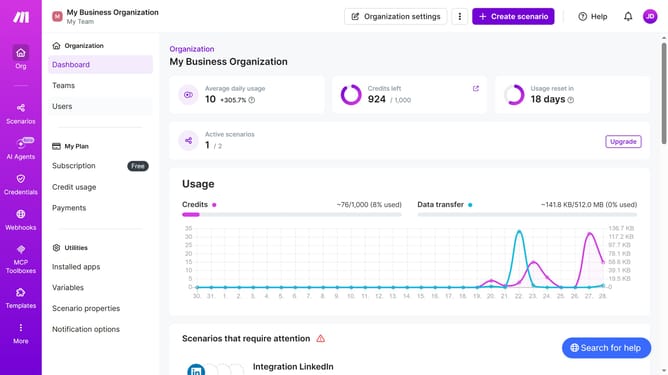
- First click on the "Scenarios" item in the left sidebar
- Then click on the Mailchimp scenario title
- Next, click on the "Options" button in the header
- Then select the "Scheduling" option from the dropdown menu
- After that, click on the "Run scenario" dropdown in the "Schedule settings" modal
- Select the "Monthly" option in the dropdown menu
- Then click on the "Days" dropdown
- Next, click on the checkbox next to the number of day
- Finally, click on the "Save" button
Why should you set a monthly running schedule of a Mailchimp scenario in Make
Make is a versatile platform designed to automate tasks and integrate various apps seamlessly.
Utilizing a monthly running schedule for a Mailchimp scenario in Make enhances efficiency by streamlining your marketing workflows systematically.
This feature not only saves time but ensures consistent engagement with your audience by automating email campaigns, reducing manual intervention.
Embrace the reliability and precision of setting predefined intervals, helping businesses maintain regular communication effortlessly.
Last update