How to set a custom default space logo in Confluence
Here is how to set a custom default space logo in confluence
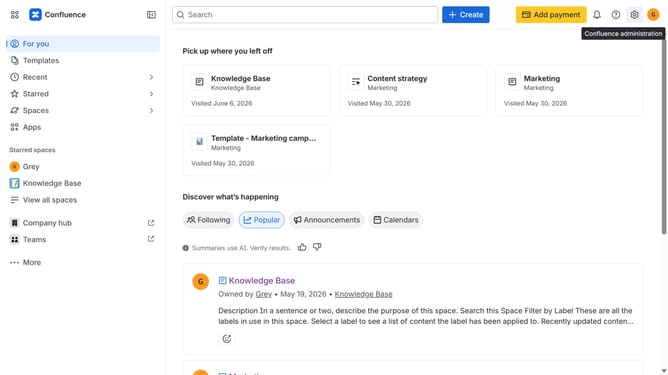
- First, click on the gear icon in the header to open Confluence administration
- Click on "Look and feel" in the settings menu
- Next, select "Default space logo" in the submenu
- Turn on the toggle next to "Logo" if it is disabled
- Then, click on the "Select a file" button and select an image file from your device
- After the upload is complete, click on the "Set new logo" button
Why should you set a custom default space logo in Confluence
Confluence is a powerful collaboration tool designed to help teams centralize knowledge and streamline project workflows.
One standout feature is the ability to set a custom default space logo. Personalizing your space with a unique logo not only enhances brand consistency but also fosters a sense of ownership and pride among team members.
By using custom logos, organizations can create visually cohesive spaces that improve recognition and facilitate easier navigation, ultimately contributing to a more effective and engaging workspace.
Last update