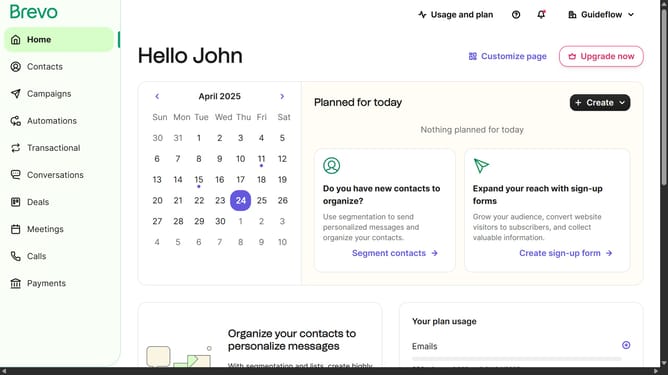
How to relocate a contact list to a folder in Brevo
Here is how to relocate a contact list to a folder in brevo
- First click on "Contacts" in the left sidebar navigation menu
- Then click on "Lists" in the submenu under Contacts section
- Next click on the folders dropdown menu in the main content area
- Then click on the folders list in the pop-up window panel
- Next click on the actions menu (three dots) for the "Sample List" item
- Then click on the "Move" option in the actions menu
- Click on the folder selection dropdown in the "Move list to another folder" modal
- Select the folder from the folder dropdown list
- Finally click on the "Move list to this folder" button at the bottom of the modal
Why should you relocate a contact list to a folder in Brevo
Brevo offers a seamless platform for efficient communication management, enabling users to easily streamline their contact organization.
With the feature to relocate a contact list to a folder, Brevo provides flexibility in managing contacts, ensuring they are neatly categorized for quick access.
This organizational benefit saves time, enhances productivity, and enables targeted communication, fostering more personalized interactions.
By maintaining a well-organized contact database, users can improve their communication strategy effortlessly.
Last update