How to move subtasks to a new parent task in ClickUp
Here is how to move subtasks to a new parent task in clickup
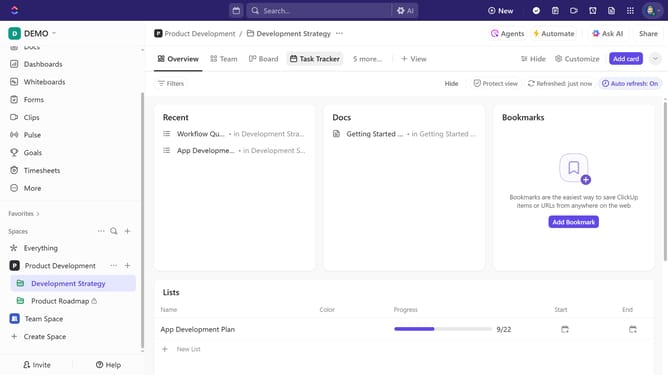
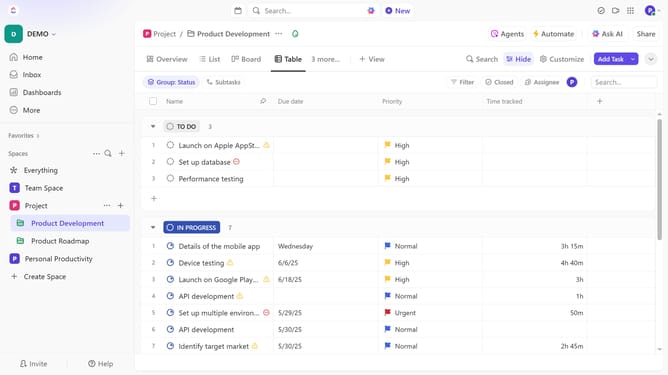
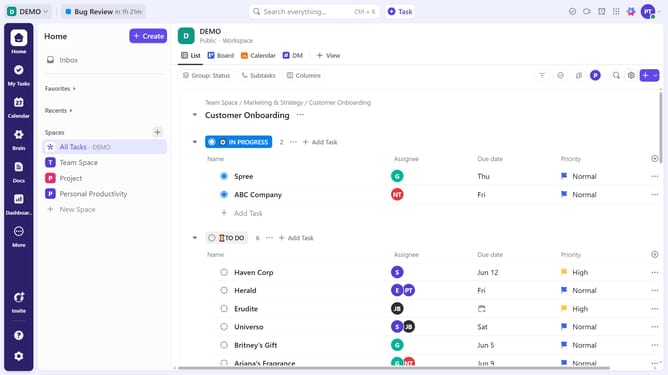
- First in the left sidebar, under the relevant Space, click on the Folder or List that contains the subtasks
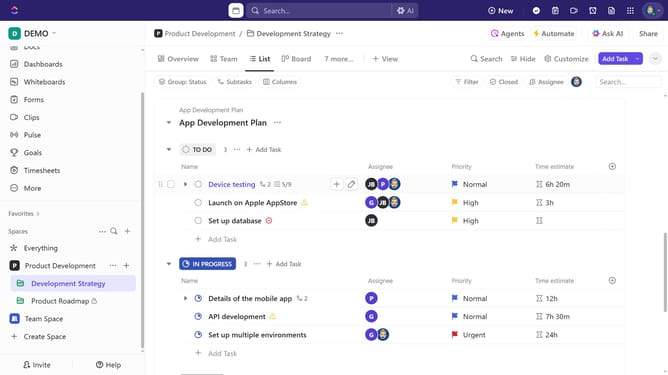
- Then locate the task containing the subtasks you want to move
- Next click the expand subtasks button next to the task
- Click the "Actions menu" (three dots) next to the subtask you want to move
- Select the "Move" option from the dropdown menu
- Alternatively, you can select the subtasks you want to move by clicking their checkboxes
- Next click the "Move/Add" button in the bottom action bar
- In the move destination dialog, click on the "Browse tasks"
- Finally select the destination task where the subtasks should be moved
Why should you move subtasks to a new parent task in ClickUp
ClickUp is a versatile productivity tool designed to streamline project management tasks effortlessly.
The feature of moving subtasks to a new parent task in ClickUp offers unparalleled flexibility in organizing workflows. This functionality allows users to rearrange tasks quickly, enhancing clarity and project organization.
By adjusting subtasks under a new parent task, teams can better align responsibilities with project goals, ensuring a more efficient and cohesive workflow, ultimately boosting productivity and collaboration.
Last update