How to add a time entry from Gantt view in ClickUp
Here is how to add a time entry from gantt view in clickup
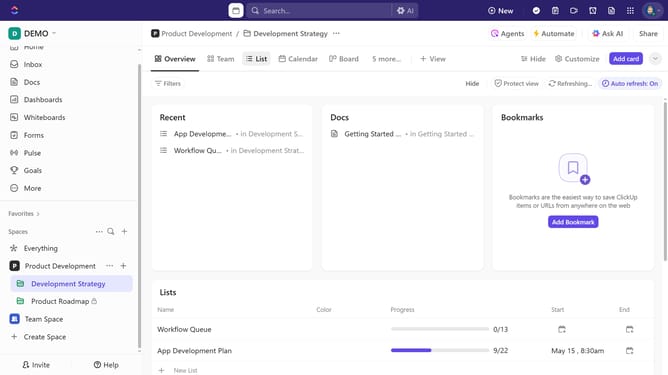
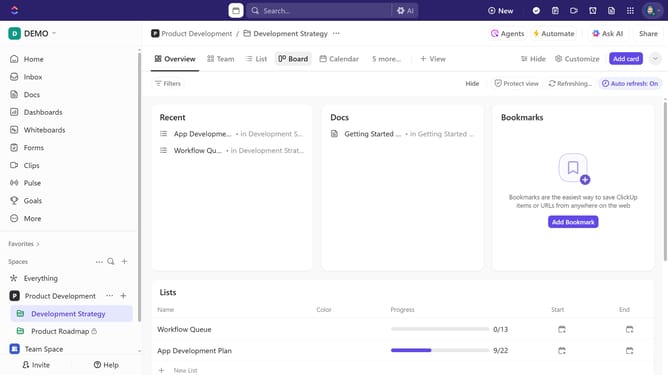
- First navigate to the Gantt view from the Views Bar
- Make sure the "Time Tracked" field is added to your Gantt view
- Next click on the time tracking icon next to the task where you want to add a time entry
- Click on the "Enter time" field to add time manually
- Then enter the amount of time worked (e.g., 30m or 2h25m) and press "Enter"
- Select a date and time period to specify when the work was done
- Mark the entry as billable or non-billable and add a note or time tracking tags if needed
- Finally, click the "Save" button to save the time entry
- You have successfully added a time entry to the task
Why should you add a time entry from Gantt view in ClickUp
ClickUp is a versatile project management tool designed to streamline your workflows and boost productivity.
Adding a time entry from the Gantt view in ClickUp is an intuitive feature that enhances your project management capabilities. It enables users to seamlessly track time, offering a panoramic view of how resources are being utilized along the project timeline.
This feature is particularly beneficial for ensuring projects stay within budget and deadlines, fostering accountability and precision across your team. Ultimately, leveraging this function within ClickUp’s Gantt view maximizes efficiency and provides valuable insights into project management.
Last update