How to hide or show closed tasks in Timeline view in ClickUp
Here is how to hide or show closed tasks in timeline view in clickup
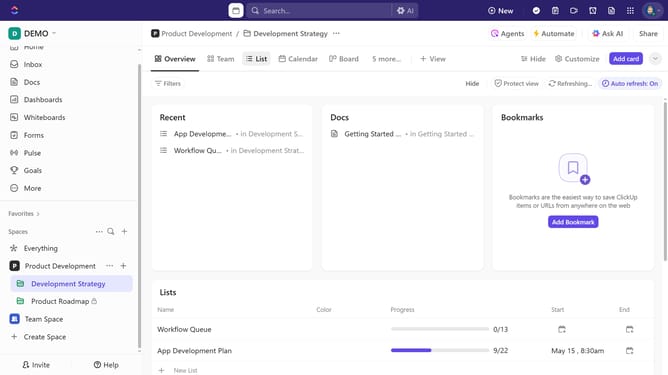
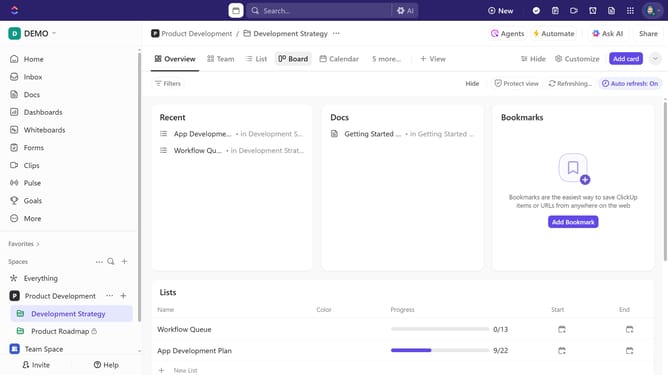
- First navigate to the Timeline view from the views bar
- Next click on the settings icon in the top toolbar to access the view customization options
- In the view options panel, click on the "Layout options" menu item
- Locate the "Closed tasks" option in the Task visibility section
- Finally, toggle the switch to show or hide closed tasks in the view
Why should you hide or show closed tasks in Timeline view in ClickUp
ClickUp is a versatile project management tool designed to streamline workflow and enhance productivity.
Within ClickUp, the option to hide or show closed tasks in the Timeline view is a powerful feature that offers flexibility in managing project visibility. This functionality allows users to quickly declutter their Timeline, focusing only on active tasks, which enhances visual clarity and reduces distraction.
By customizing this view, team members can prioritize ongoing work more effectively, ensuring resources are dedicated where most needed. This adjustment not only keeps projects organized but also supports continuous progress tracking and streamlined communications.
Last update