How to edit a time entry from Table view in ClickUp
Here is how to edit a time entry from table view in clickup
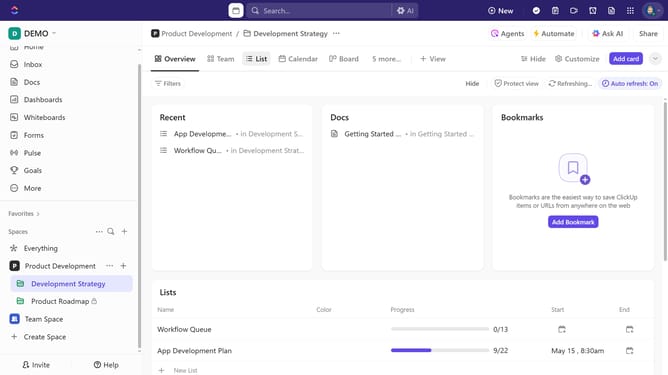
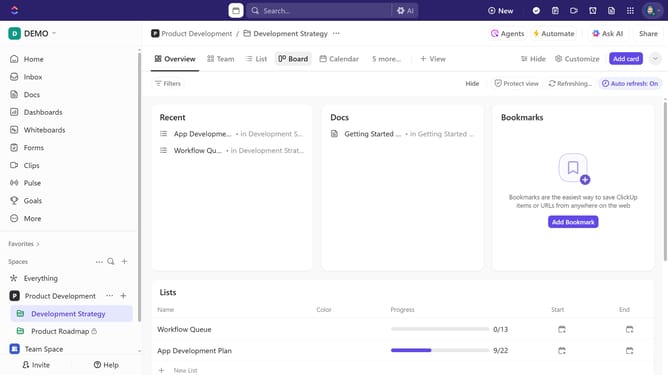
- First navigate to your Table view from the views bar
- Make sure the "Time Tracked" field is added to your view
- Then click the time tracked field next to the task
- Under the "Time Entries" section, locate the specific entry to edit
- Next expand and click on it
- Then, in the time entry popup, start making your changes by adjusting details like start time, duration, notes, tags, etc as needed
- Finally click on "Save" button to apply the changes
- The time entry will now reflect your updates
Why should you edit a time entry from Table view in ClickUp
ClickUp is an all-in-one productivity platform designed to streamline your workflows and boost team efficiency.
Editing a time entry in ClickUp's Table view is a seamless feature that empowers users to maintain accurate records of time spent on tasks. In the table view, users can easily access and adjust their time entries, allowing for quick updates and ensuring that tracked time reflects actual work done.
This feature is especially valuable for teams aiming to optimize time management and enhance project transparency. By making swift adjustments, teams can ensure precise billing, accurate reporting, and improved resource allocation.
Last update