How to start a timer from Table view in ClickUp
Here is how to start a timer from table view in clickup
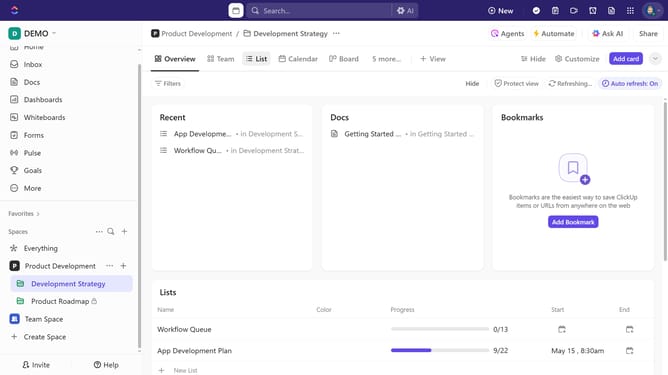
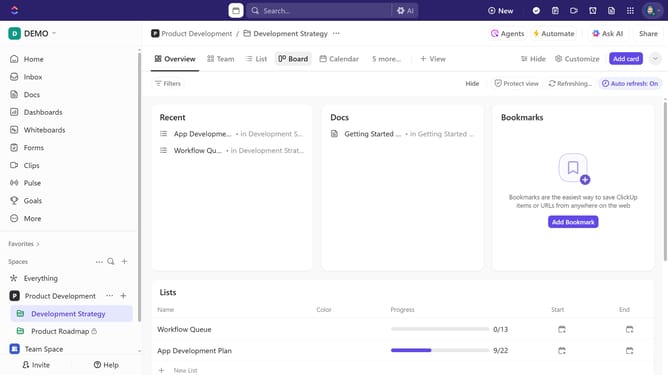
- First navigate to Table view from the views bar at the top
- Ensure the "Time Tracked" field is added to your Table view
- Next locate the task where you want to track time
- Then click on the "Time tracked" field next to the task
- Finally click on the "Start timer" button in the time entry popup
- Stop the timer when you're done, and the tracked time will be saved to the task
Why should you start a timer from Table view in ClickUp
ClickUp is a versatile productivity platform designed to streamline work processes and enhance team collaboration.
A standout feature in ClickUp is the ability to start a timer directly from the Table view. This ensures you can effortlessly track time on tasks without missing a beat, maintaining focus and efficiency.
Utilizing this feature helps users stay accountable, manage time effectively, and gain valuable insights for future workflow improvements. Starting a timer from the Table view emphasizes clarity and organization in busy work environments.
Last update