Zoom
Zoom is a unified communications platform for video, phone, chat, and webinars. It helps teams connect, collaborate, and boost productivity with powerful, intuitive tools.
Website
Industry
Collaboration
Share this article:

How to move a page to a different document in Zoom Docs

Here is how to move a page to a different document in zoom docs

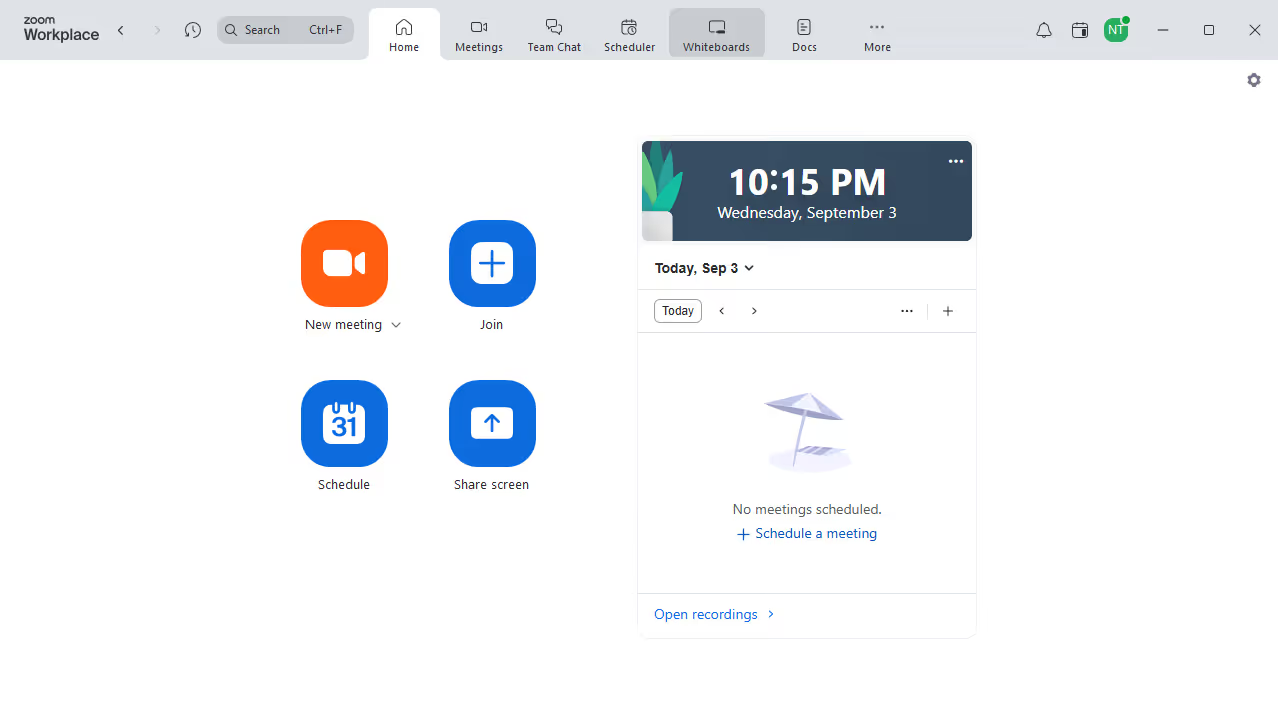
  1. First click on "Docs" item in the left sidebar menu
  2. Then open the document containing the page you want to move
  3. Next navigate to the page you want to move
  4. Then click on the "More" button (three dots) in the top-right corner of the document
  5. Select "Move to" from the dropdown menu
  6. Next choose the destination document from the list
  7. Then click the "Move" button
  8. Finally click the "Move" button in the confirmation dialog to complete the move operation

Create your own interactive guide with Guideflow

Why should you move a page to a different document in Zoom Docs

Zoom, a cornerstone of modern virtual communication, streamlines connectivity for individuals and businesses worldwide.

One particularly useful feature of Zoom Docs is the ability to move a page to a different document effortlessly. This not only enhances document organization but also accommodates spontaneous brainstorming sessions or project realignments without missing a beat.

This functionality boosts productivity by making information management seamless, ensuring your essential data is exactly where it needs to be, whenever you need it.


Last update
February 3, 2026
Cursor MariaA cursor points to a button labeled "James."

Create your first demo in less than 30 seconds.