Mural
Mural is a visual collaboration platform for brainstorming, planning, and running remote workshops on a shared canvas.
Website
Industry
Design
Share this article:

How to manage workspace share link permissions in Mural

Here is how to manage workspace share link permissions in mural

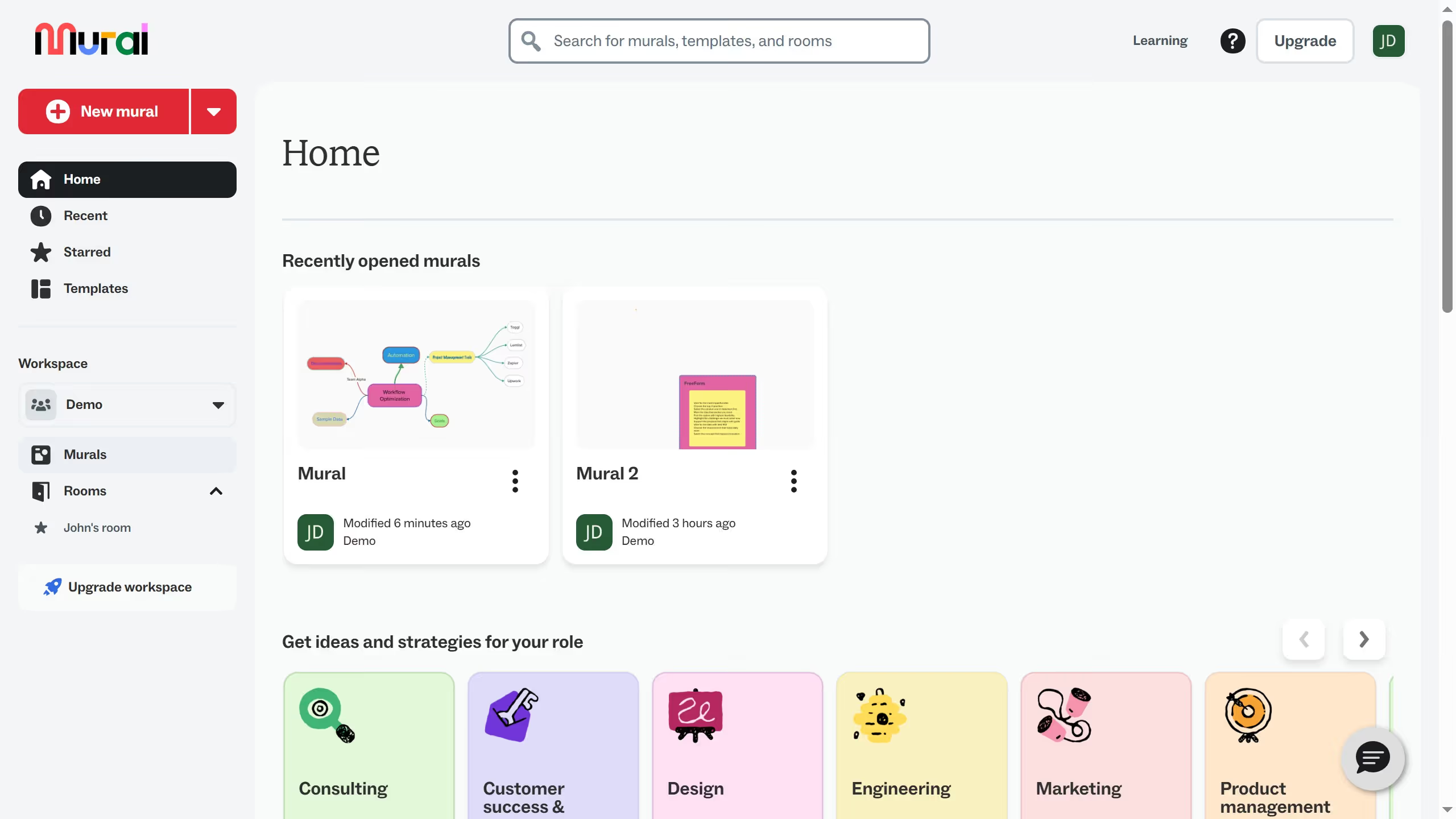
  1. First click on dropdown in the workspace section of the left sidebar
  2. Then click on the last option from the workspace dropdown menu
  3. Next scroll down the workspace settings page to view additional settings options
  4. Then scroll down further to view the "Share link permissions" and "Embed Settings" sections and click on the checkboxes
  5. Finally click on "Save Changes" button at the bottom of the workspace settings page

Create your own interactive guide with Guideflow

Why should you manage workspace share link permissions in Mural

Mural is a digital workspace designed to enhance team collaboration through intuitive visual tools.

Managing workspace share link permissions in Mural allows you to control who can view, edit, or collaborate on your projects, ensuring that sensitive information remains secure.

With adjustable permissions, you can confidently share your creative boards with teammates or clients, tailoring access levels to suit each participant’s role.

This feature promotes efficient teamwork by providing clarity and safeguarding your collaborative efforts, making project management smoother and more organized.

Last update
March 16, 2026
Cursor MariaA cursor points to a button labeled "James."

Create your first demo in less than 30 seconds.