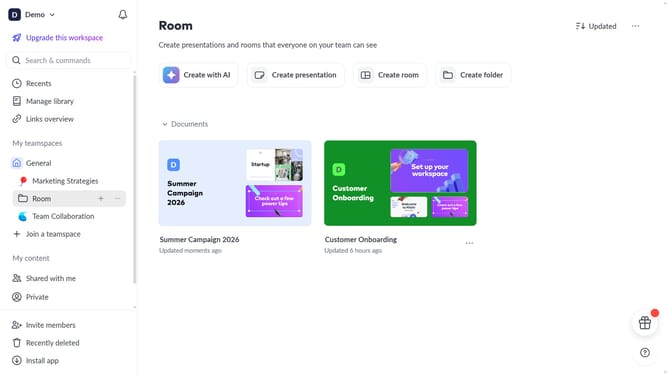
How to link to a different slide from an image on Pitch.com
Here is how to link to a different slide from an image on pitch.com
- First, navigate to the slide where you want to add the linked image
- Then select the image and click on the "More options" (three dots) to open the Design panel
- Next locate the "Link" section in the Design panel on the right sidebar
- In the link field, type the slide number you want to link to and click Enter
- The image is now linked to the selected slide. When clicked, it will redirect to that slide
Why should you link to a different slide from an image on Pitch.com
Pitch.com is a dynamic platform designed to create stunning presentations effortlessly.
One standout feature of Pitch.com is the ability to link directly from an image to a different slide. This capability can transform the way you navigate through your presentation, offering a more interactive and engaging experience for your audience.
By linking images to slides, users enhance storytelling and streamline transitions, creating captivating narratives that hold attention and emphasize key points effectively.
This feature enriches presentations, making information flow more seamlessly and engaging on Pitch.com.
Last update