Mural
Mural is a visual collaboration platform for brainstorming, planning, and running remote workshops on a shared canvas.
Website
Industry
Design
Share this article:

How to import elements from Google Drive in Mural

Here is how to import elements from google drive in mural

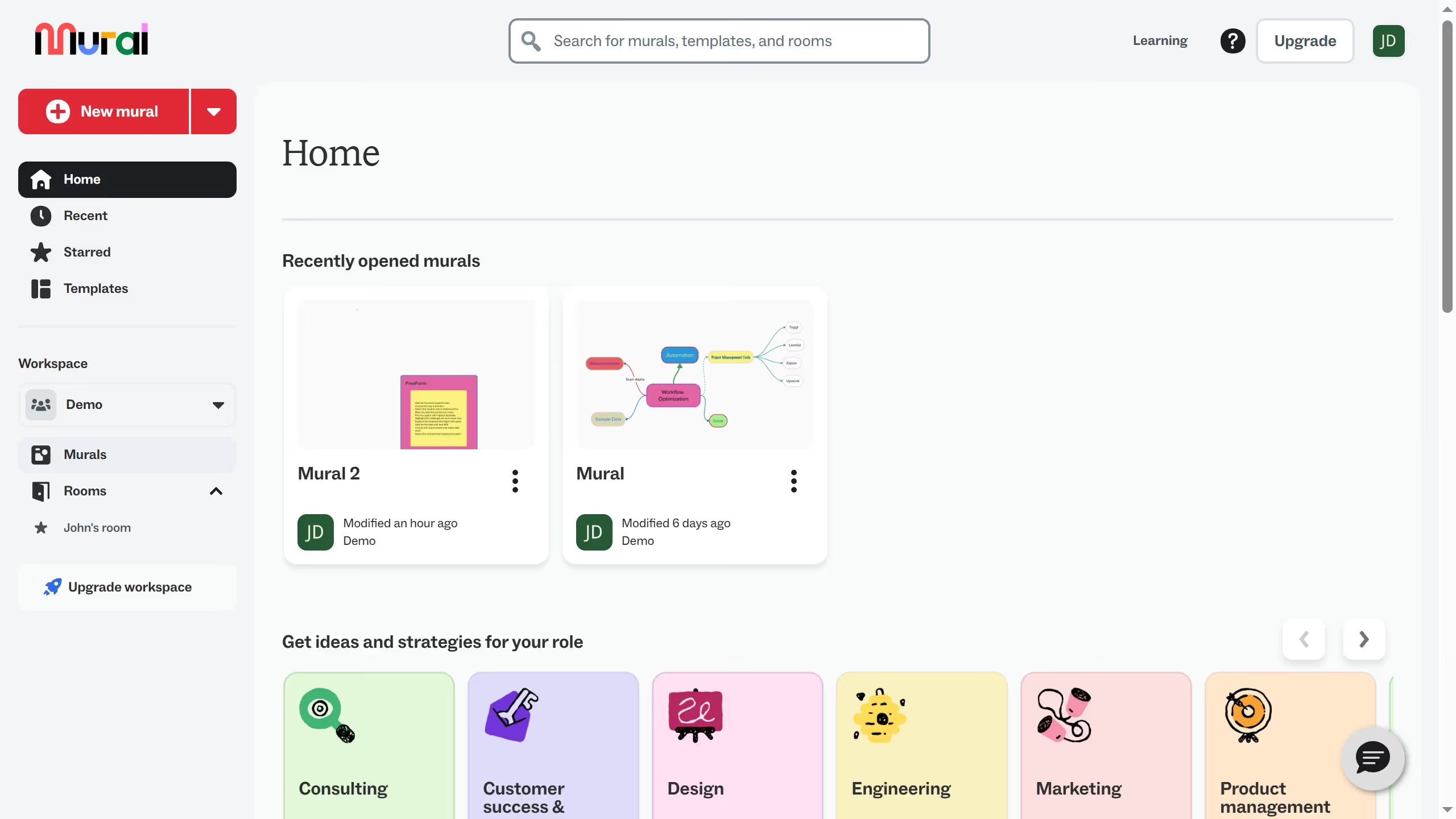
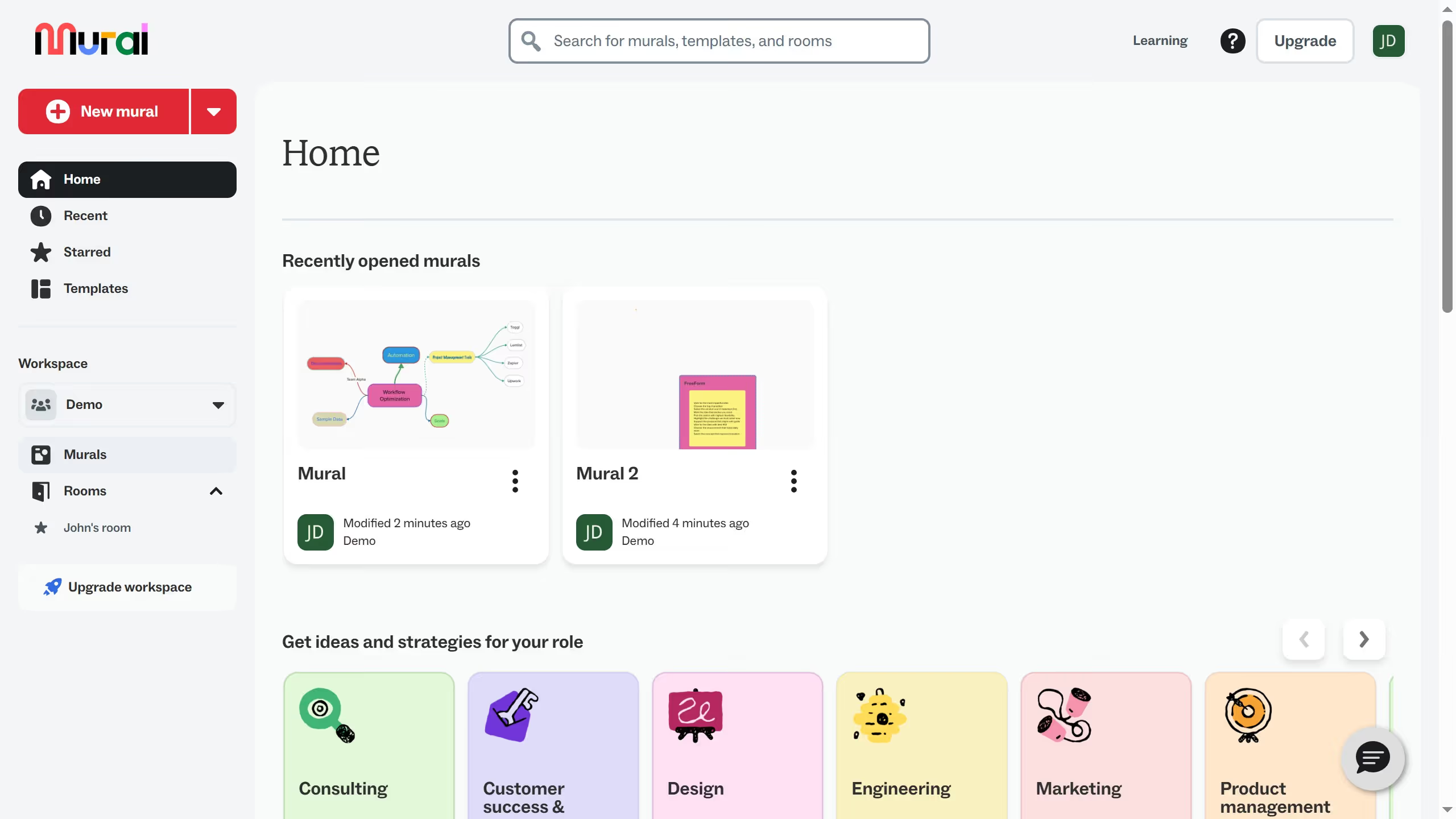
  1. First click on "Murals" in the left sidebar
  2. Then click on the mural filename that you want to manage to open it
  3. Next click on the "Import" icon in the left toolbar
  4. Then select "Google Drive" option from the import sources
  5. Next click on your preferred account from the account selection list
  6. Then click on "Continue" button to proceed with the Google Drive connection
  7. Next select a file from the Files list
  8. Finally click on "Select" button to import the chosen file

Create your own interactive guide with Guideflow

Why should you import elements from Google Drive in Mural

Mural revolutionizes collaboration by providing a digital workspace for visual thinking and creativity.

Seamlessly importing elements from Google Drive into Mural empowers users to integrate documents, images, and other creative files directly into their collaborative canvases.

This feature enhances efficiency by centralizing all project resources in one place, making information readily accessible for teams to brainstorm and execute ideas cohesively.

The ease of bringing in existing work from Google Drive elevates team productivity, ensures continuity, and fosters a seamless collaborative experience.

Last update
March 16, 2026
Cursor MariaA cursor points to a button labeled "James."

Create your first demo in less than 30 seconds.