Zoom
Zoom is a unified communications platform for video, phone, chat, and webinars. It helps teams connect, collaborate, and boost productivity with powerful, intuitive tools.
Website
Industry
Collaboration
Share this article:

How to hide object dimensions in Zoom whiteboard

Here is how to hide object dimensions in zoom whiteboard

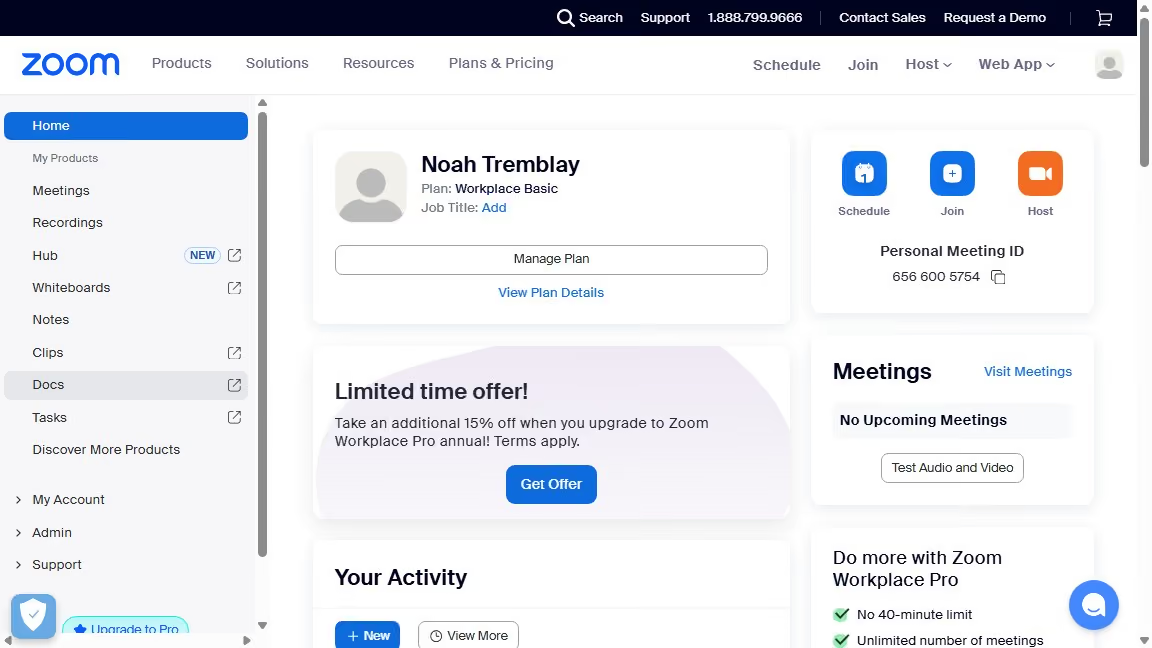
  1. First click on the "Whiteboards" tab in the top navigation menu
  2. Then open the whiteboard where object dimensions are visible
  3. Next click on the "More" menu button in the whiteboard toolbar
  4. Then click on "View" option in the dropdown menu
  5. Finally toggle off the "Object dimensions" item in the expanded menu to hide dimensions from the whiteboard

Create your own interactive guide with Guideflow

Why should you hide object dimensions in Zoom whiteboard

Zoom is a versatile platform designed to facilitate seamless virtual communication and collaboration.

In the Zoom whiteboard, the ability to hide object dimensions can significantly enhance your focus during brainstorming sessions. By concealing these details, the whiteboard becomes less cluttered, allowing users to concentrate on the content without distraction.

This feature supports a cleaner visual presentation, making collaborative efforts more efficient. By maintaining simplicity, it fosters a more engaging and productive environment for all participants.


Last update
February 3, 2026
Cursor MariaA cursor points to a button labeled "James."

Create your first demo in less than 30 seconds.