How to filter audit logs by user added to data view in Mixpanel
Here is how to filter audit logs by user added to data view in mixpanel
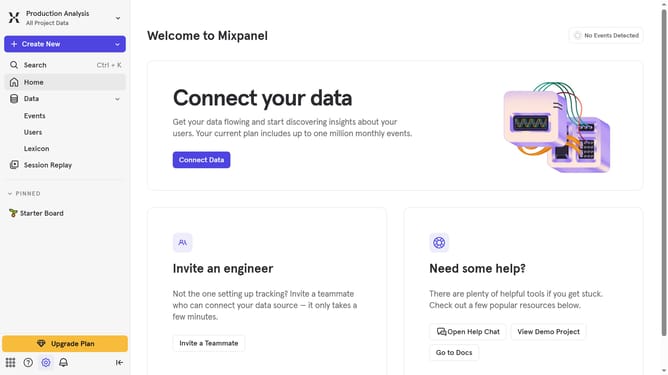
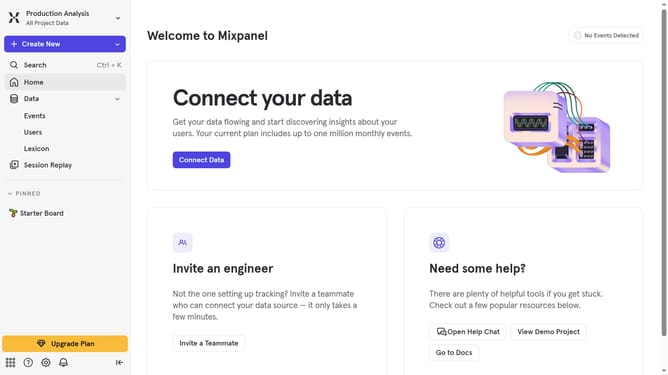
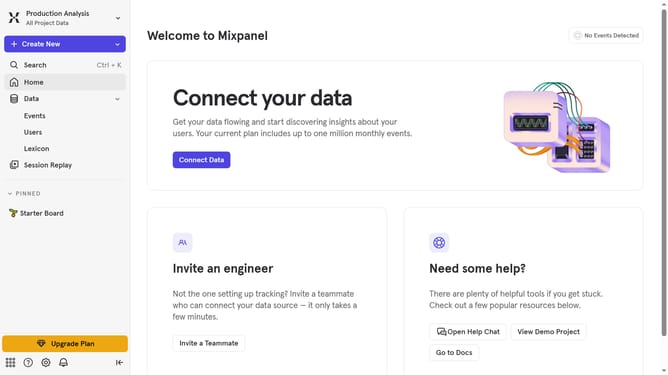
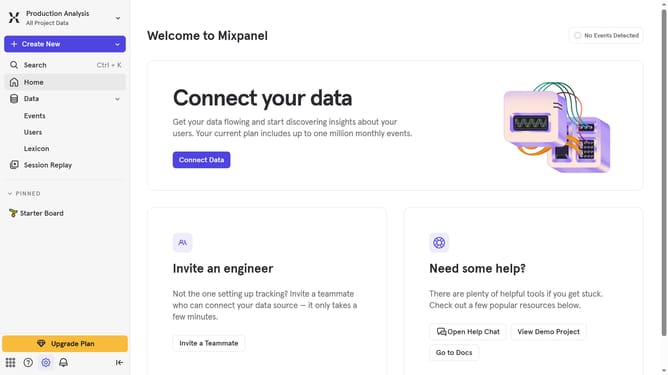
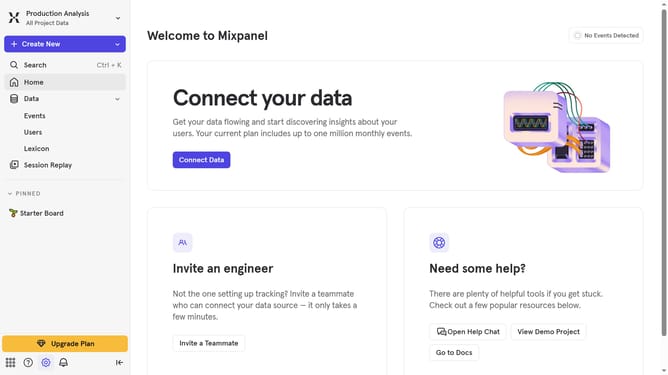
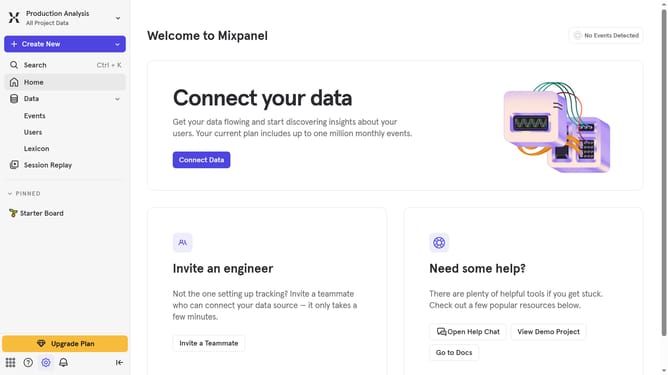
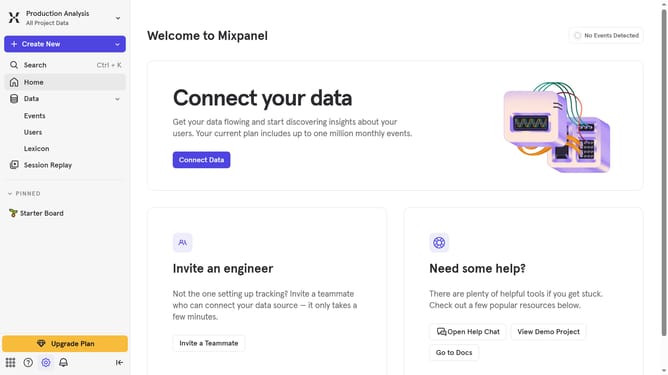
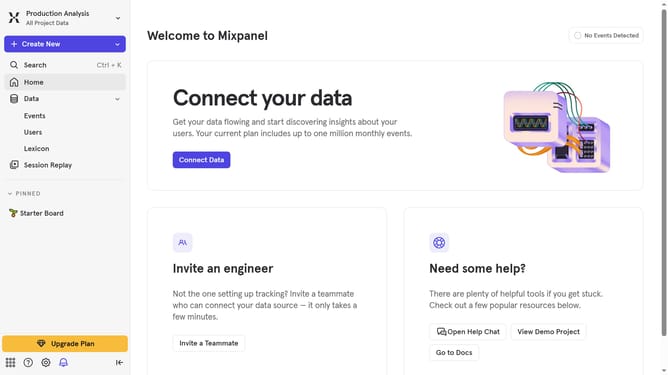
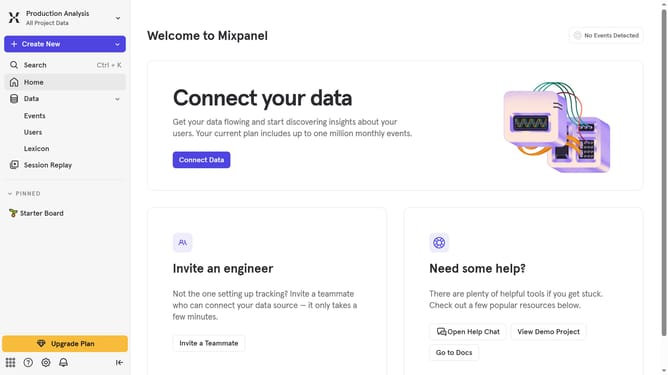
- First click on the settings icon in the bottom left corner of the header
- Then hover your mouse cursor over the "Settings" in the side menu
- Next, click the "Organization Settings" in the expanded menu
- After that, in the left sidebar menu, click on "Audit Log"
- Then click on the "Action" dropdown menu
- Next, scroll down to view more options
- Finally, click on the checkbox next to "User Added to Data View"
Why should you filter audit logs by user added to data view in Mixpanel
Mixpanel is a powerful analytics tool designed to help businesses gain insights through data-driven decisions.
One of its handy features is the ability to filter audit logs by user within the data view. This feature allows users to pinpoint specific activities, making it easier to track changes and actions associated with particular individuals.
Using this feature enhances accountability and streamlines the process of monitoring user interactions, leading to more effective team management and data security.
By focusing on individual user actions, businesses can better understand team behavior and safeguard their data integrity.
Last update