How to enable autosave for a Calendar view in ClickUp
Here is how to enable autosave for a calendar view in clickup
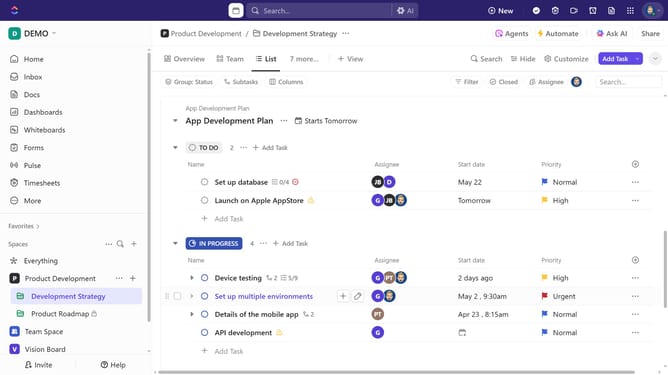
- First navigate to the Space, Folder, or List where the calendar view is located
- Then click on the Calendar view in the Views Bar
- Next click on "Customize" button in the top-right toolbar
- Finally, turn on the "Autosave for me" option in the Customize view panel
Why should you enable autosave for a Calendar view in ClickUp
ClickUp is a powerful productivity platform designed to streamline work processes and enhance team collaboration.
The autosave feature in Calendar view ensures that all your modifications and scheduling adjustments are preserved instantly. This capability means that users can focus on planning and task management without worrying about losing any updates made in real-time.
Enabling autosave enhances productivity, as it minimizes disruptions and allows for smooth transitions between activities. This seamless experience is especially beneficial in dynamic work environments where every second counts.
Last update