Zoom
Zoom is a unified communications platform for video, phone, chat, and webinars. It helps teams connect, collaborate, and boost productivity with powerful, intuitive tools.
Website
Industry
Collaboration
Share this article:

How to duplicate a page in Zoom Docs

Here is how to duplicate a page in zoom docs

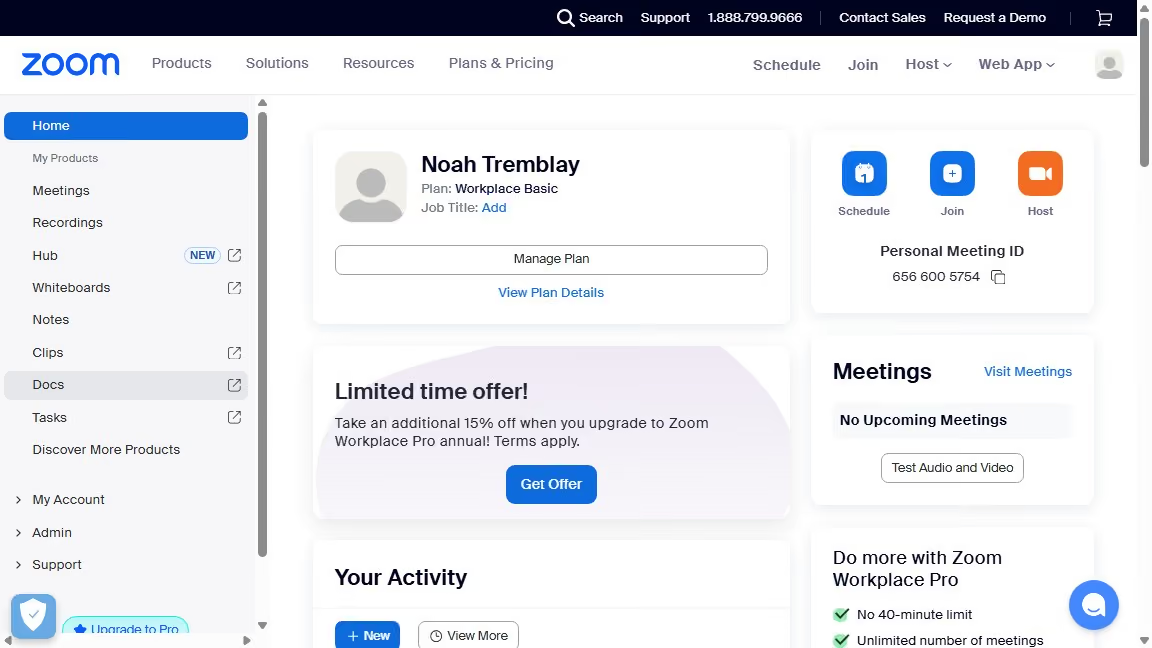
  1. First click on the "Docs" option in the left sidebar menu
  2. Then open the document containing the page you want to duplicate
  3. Next navigate to the page you want to copy
  4. After that click on the "More" button in the top-right corner of the document
  5. Then select "Duplicate to" from the dropdown menu
  6. Next select the document from the destination list where you want to duplicate the page
  7. Finally click the "Duplicate" button to complete the document duplication

Create your own interactive guide with Guideflow

Why should you duplicate a page in Zoom Docs

Zoom, renowned for connecting people virtually, enhances communication with a suite of collaborative tools.

One standout feature in Zoom Docs is the ability to duplicate a page effortlessly. This allows users to replicate content with a few simple clicks, maintaining consistency and saving time that would otherwise be spent on recreating information from scratch.

Utilizing this feature can streamline workflows, ensuring teams stay productive and organized. It enables seamless sharing of templates, reports, or notes, fostering collaboration and efficiency across various projects.


Last update
February 3, 2026
Cursor MariaA cursor points to a button labeled "James."

Create your first demo in less than 30 seconds.