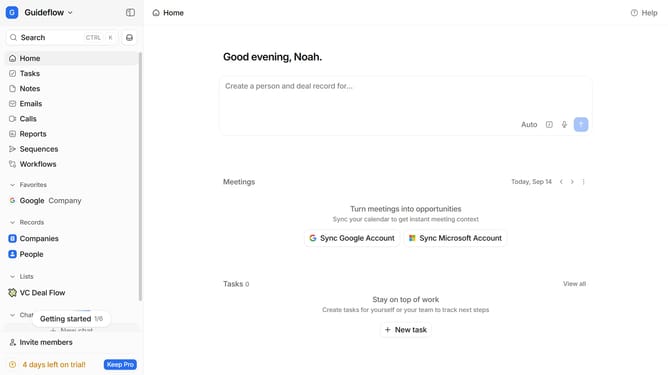
How to disable sequence delagated sender invites email notifications in Attio
Here is how to disable sequence delagated sender invites email notifications in attio
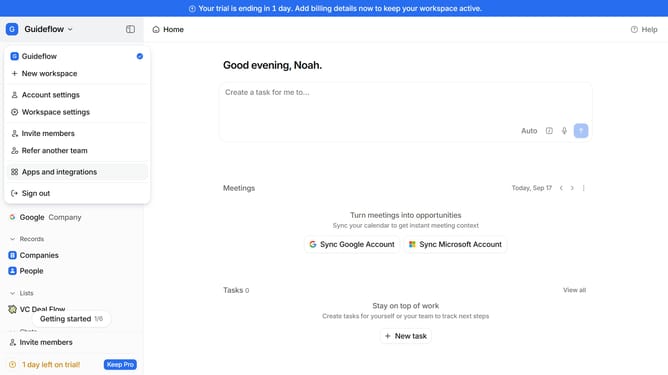
- First click on the company name dropdown in the header
- Then click on "Account settings" in the sidebar
- Next, click on "Notifications" in the settings menu
- Then scroll down to view more options
- Finally, uncheck the checkbox next to the "Sequence deegated sender invites" under the "Email" section
Why should you How to disable sequence delagated sender invites email notifications in Attio
Attio is a cutting-edge CRM that streamlines relationship management with intuitive features.
Disabling sequence delegated sender invites email notifications in Attio enhances your team's focus by reducing unnecessary inbox clutter. This feature allows you to maintain control over the notifications received, ensuring that only vital information reaches your team.
Utilizing this option boosts productivity by minimizing distractions, leading to more efficient workflow and improved communication within your organization.
Last update