How to delete additional time for a daily running schedule for LinkedIn scenario in Make
Here is how to delete additional time for a daily running schedule for linkedin scenario in make
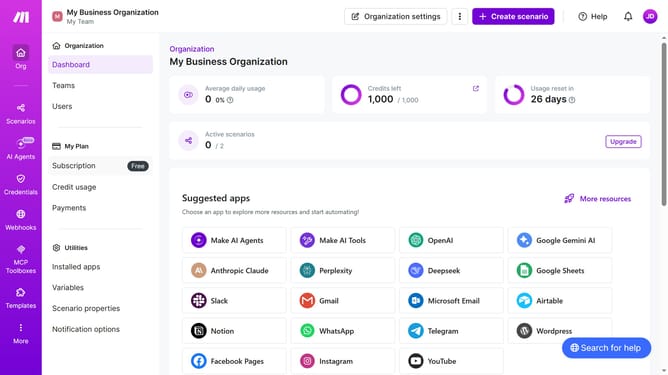
- First click on "Scenarios" from the left sidebar
- Then click on the LinkedIn scenario from the main section
- Then click on the "Options" button
- Then click on the "Scheduling" option in the dropdown menu
- Then click on the close button or X icon next to the time you want to delete
- Finally click on the "Save" button
Why should you delete additional time for a daily running schedule for LinkedIn scenario in Make
Make is a versatile automation platform designed to streamline your workflows effortlessly.
In the context of scheduling for LinkedIn, the ability to delete additional time for a daily running schedule in Make is a valuable feature. It allows you to optimize your schedule by ensuring no unnecessary time slots clutter your agenda.
This efficient management leads to better focus on essential tasks, enhancing productivity. Utilizing this feature ensures your daily operations are streamlined, freeing up time for meaningful engagement and strategic planning.
Last update