How to create an OOO schedule for public holiday in Cal.com
Here is how to create an ooo schedule for public holiday in cal.com
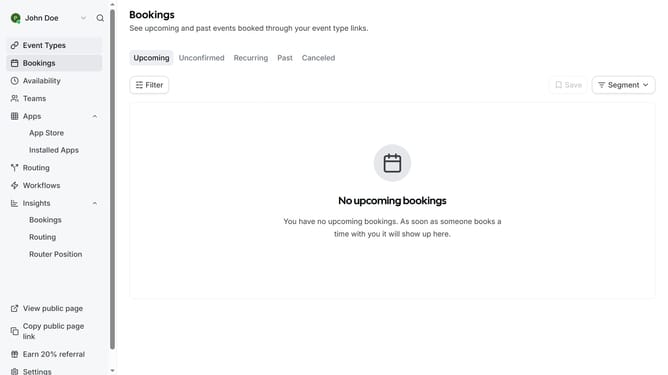
- First click on "Settings" in the left sidebar menu
- Then click on "Out of office" in the settings menu
- Click the "Add" button in the top-right corner of the screen
- Click on the calendar icon under "Dates"
- Click on the date for the public holiday in the calendar date picker
- Click the "Reason" dropdown menu to view available options
- Select "Public holiday" from the reason dropdown list
- Finally, click the "Create" button to set your out of office status
Why should you create an OOO schedule for public holiday in Cal.com
Cal.com is a versatile scheduling platform designed to streamline appointment bookings and time management for individuals and businesses.
Creating an Out of Office (OOO) schedule for public holidays in Cal.com ensures that you maintain clear communication with your clients and colleagues. This feature allows you to preemptively block off unavailable dates, enhancing your professionalism and efficiency.
Using Cal.com to manage public holidays helps prevent scheduling conflicts and enhances your work-life balance, allowing you to focus on what's important during the holidays.
Last update