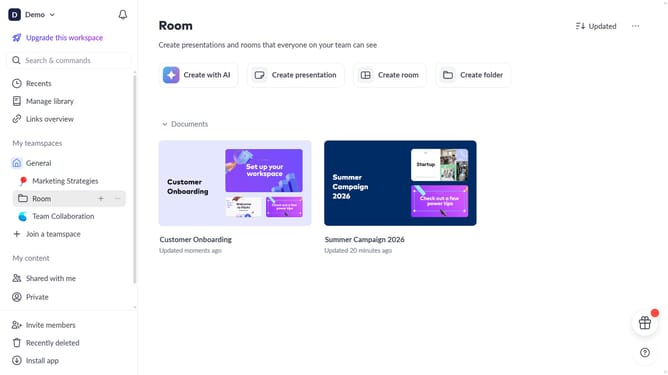
How to create a text block on Pitch.com
Here is how to create a text block on pitch.com
- First navigate to the slide where you want to add the text block and click on the "Text" button in the top toolbar
- Then click on your preferred text styles option in the dropdown menu
- Next click on the text block and type your desired text inside it
- In the toolbar that appear, you can change the font size, text color and more
- For additional editing options, click on the "More options" (three dots) to open the Design panel
- In the Design panel, you can modify the size, position, font, opacity, alignment, and other settings
- You’ve successfully created and added a text block in your slide
Why should you create a text block on Pitch.com
Pitch.com is an intuitive platform designed to transform presentation creation into an engaging and efficient process.
Creating a text block on Pitch.com seamlessly integrates compelling narratives into your presentations, ensuring clarity and focus.
This feature allows users to effortlessly convey key messages, enhancing the depth and professionalism of any pitch. By utilizing text blocks, your ideas become more structured, ensuring your audience remains engaged and informed.
Last update