How to replace and edit images in groups on Pitch.com
Here is how to replace and edit images in groups on pitch.com
- First, navigate to the slide containing the image you want to replace and edit
- Then find and click on the image you want to replace
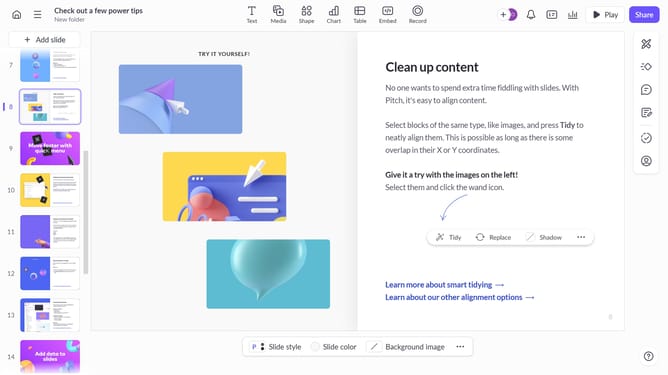
- Next click on the "Replace" button in the toolbar
- In the media library or integrations, select a new image or upload one
- The new image will replace the old one while maintaining its position on the slide
- To edit the image, click on the "More options" (three dots) in the toolbar
- In the Design panel, you can adjust and edit settings like Filter, Appearance, opacity and more option as needed
- Finally, after making the changes, click outside the Design panel to apply the edits
Why should you replace and edit images in groups on Pitch.com
Pitch is a dynamic platform designed to streamline the creation of collaborative presentations.
The ability to replace and edit images in groups on Pitch.com transforms how teams manage visual content. By allowing users to swap and adjust images collectively, it enhances efficiency and ensures visual consistency across slides.
This feature facilitates quicker updates and revisions, empowering teams to maintain a cohesive look and adapt seamlessly to feedback or changing information. The result is a polished presentation without the hassle of individual edits.
Last update