How to create a dynamic template version in Sendgrid
Here is how to create a dynamic template version in sendgrid
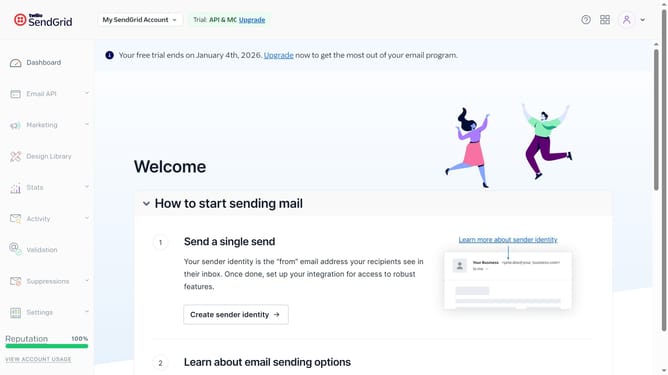
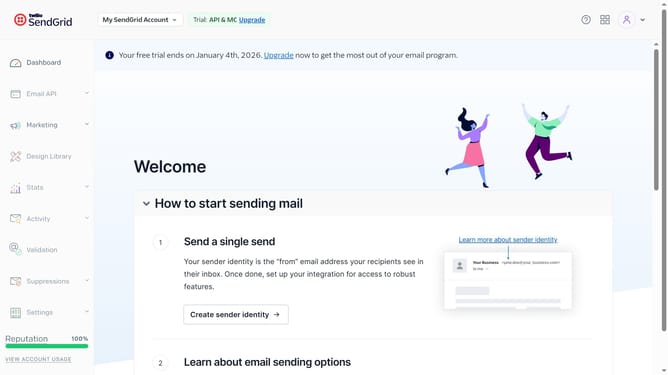
- First click on "Email API" option in the left sidebar menu
- Next click on "Dynamic Templates" in the submenu under Email API
- Click on the dynamic template you want to add a version to
- Then click the "Add Version" button to create a new template version
- Click either the "Your Email Designs" or the "SendGrid Email Designs" tab
- Hover over the desired starting template and click "Select"
- To modify the starting template, click "Select" for either the Design Editor or Code Editor
- Now complete the version settings by adding a Version Name, Subject, and Preheader
- Click the "Build" tab
- You can also add modules, set global styles and use advanced options
- Finally click on the "Save" button in the top navigation
- When finished, click on the "Back" arrow icon in the top left corner
Why should you create a dynamic template version in Sendgrid
SendGrid is a powerful platform designed to streamline and enhance your email communication with efficiency and precision.
Creating a dynamic template version in SendGrid is a transformative feature that allows for personalized and flexible email content.
This dynamic approach offers the opportunity to tailor emails to individual recipients, fostering better customer engagement and stronger relationships.
By leveraging this feature, businesses can achieve a more targeted communication strategy, resulting in improved email performance and greater overall impact.
Last update