How to configure context window size for Mistral Cloud chat provider in n8n
Here is how to configure context window size for mistral cloud chat provider in n8n
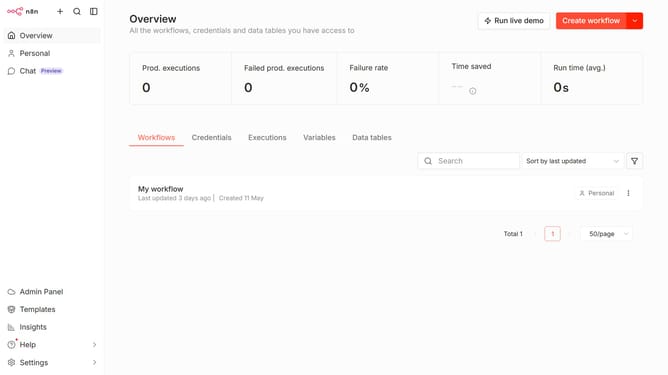
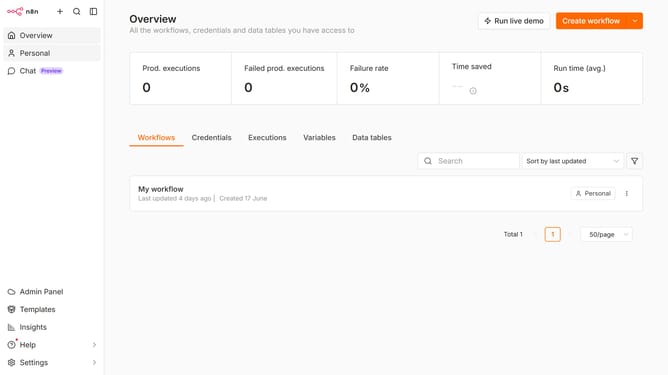
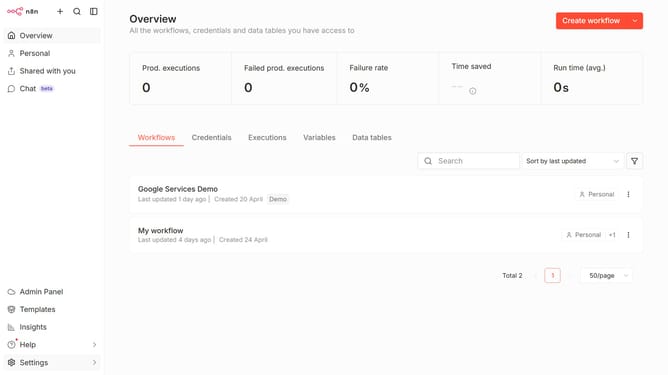
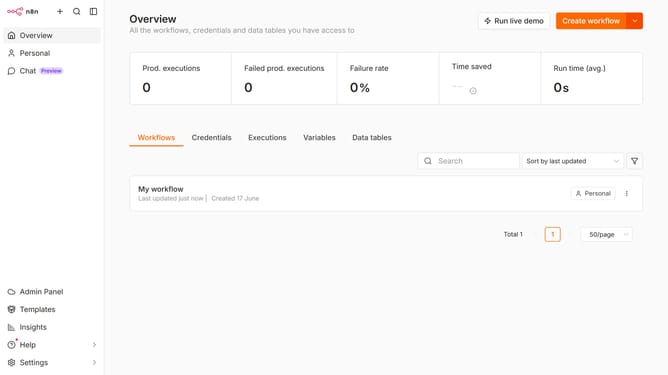
- First click on "Settings" item in the sidebar
- Then click on "Chat" item in the left menu
- Then click on the three dots icon
- Then click on "Edit provider" button
- Then click on the input field and enter your desired amount
- Finally click on "Confirm" button
Why should you configure context window size for Mistral Cloud chat provider in n8n
n8n is a versatile platform designed to orchestrate workflows effortlessly. Configuring the context window size for the Mistral Cloud chat provider enhances your chat interactions by tailoring conversation data retention to your needs.
This customization allows for smoother and more relevant chat experiences, ensuring only pertinent data is retained and processed. Adjusting the context window size optimizes performance and enhances the overall efficiency of your chat-related workflows.
By configuring this feature, you ensure that your workflow processes remain lean and focused, ultimately contributing to a more streamlined operational experience.
Last update