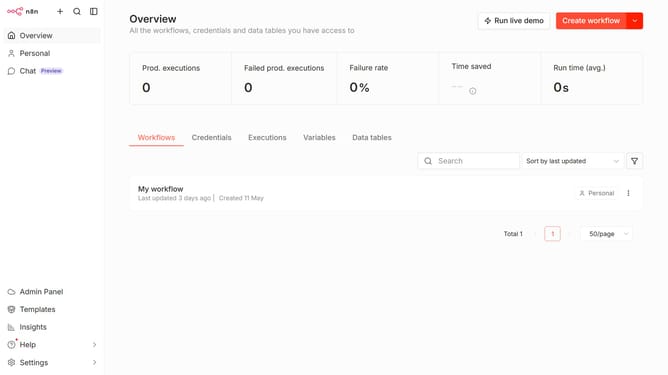
How to configure context window size for Azure chat provider in n8n
Here is how to configure context window size for azure chat provider in n8n
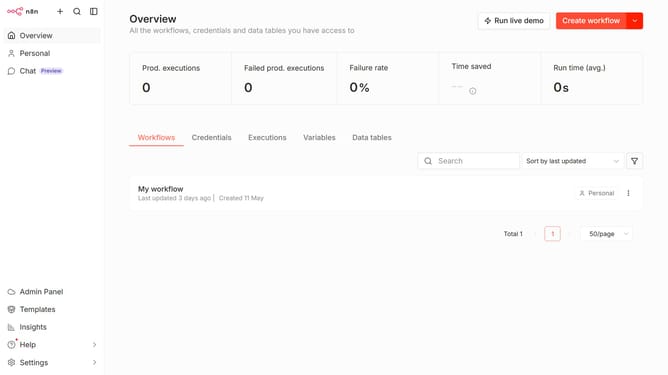
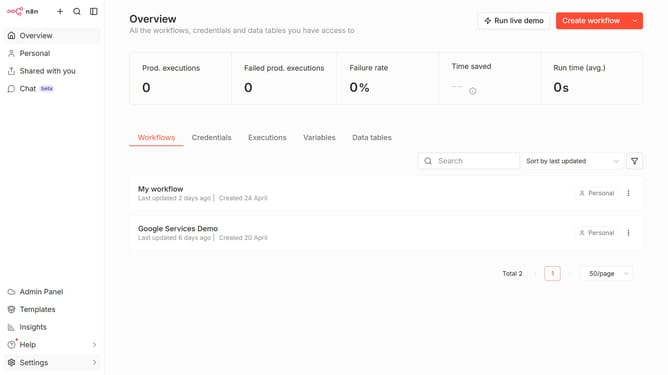
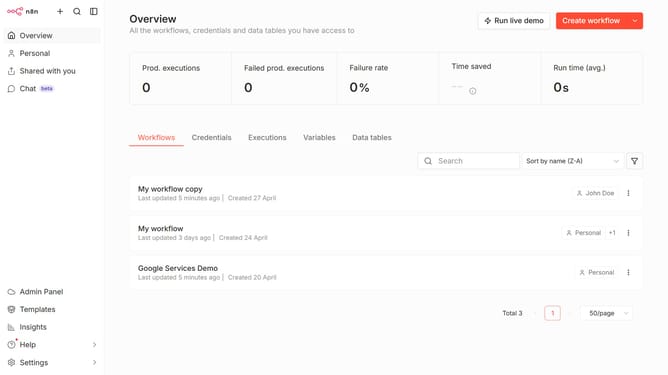
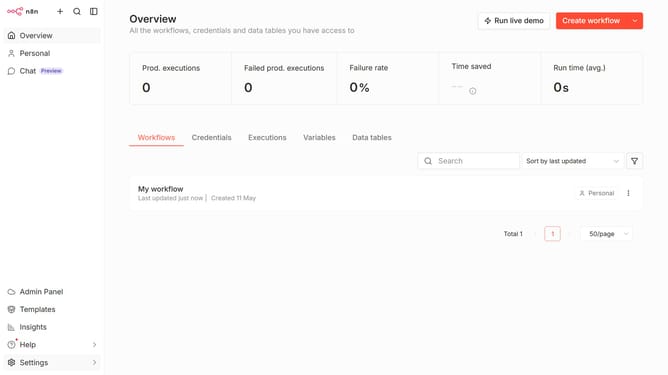
- First, click on "Settings" in the left sidebar
- Then, click on "Chat" in the left sidebar
- Next, click on the three dots menu for the desired item
- Then, click on "Edit provider"
- After that, change the number to the desired amount in the "Context window (messages)" input field
- Finally, click on the "Confirm" button
Why should you configure context window size for Azure chat provider in n8n
n8n is a groundbreaking workflow automation tool that empowers users to connect various apps and services seamlessly.
One exciting feature is configuring the context window size for the Azure chat provider.
This functionality allows users to customize how much conversation history their chat interface retains, enhancing user experience by providing relevant context for ongoing discussions.
By fine-tuning this setting, you ensure smoother communication and a more dynamic interaction flow, making every chat session both meaningful and efficient.
Last update