Mural
Mural is a visual collaboration platform for brainstorming, planning, and running remote workshops on a shared canvas.
Website
Industry
Design
Share this article:

How to change canvas color in Mural

Here is how to change canvas color in mural

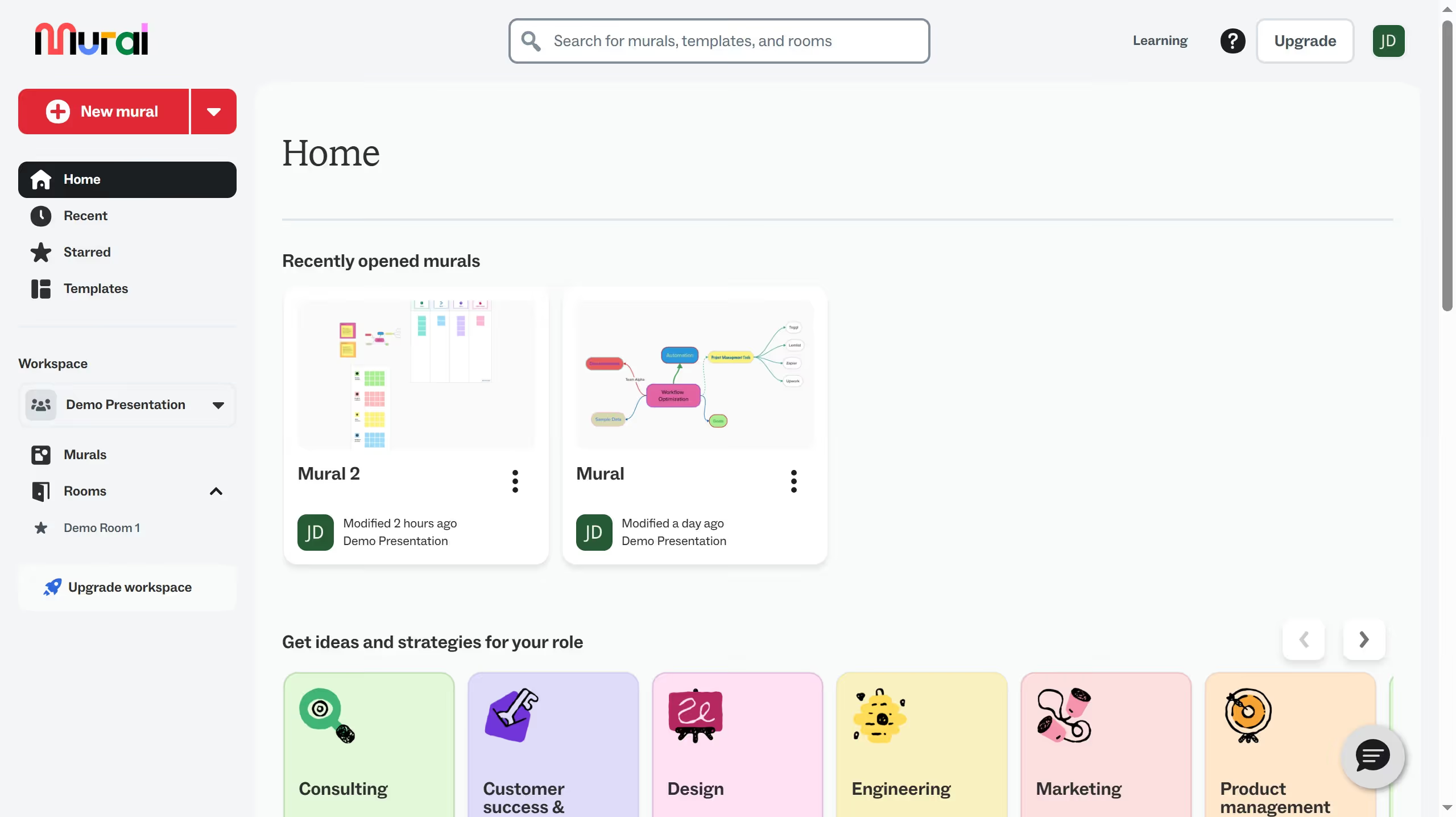
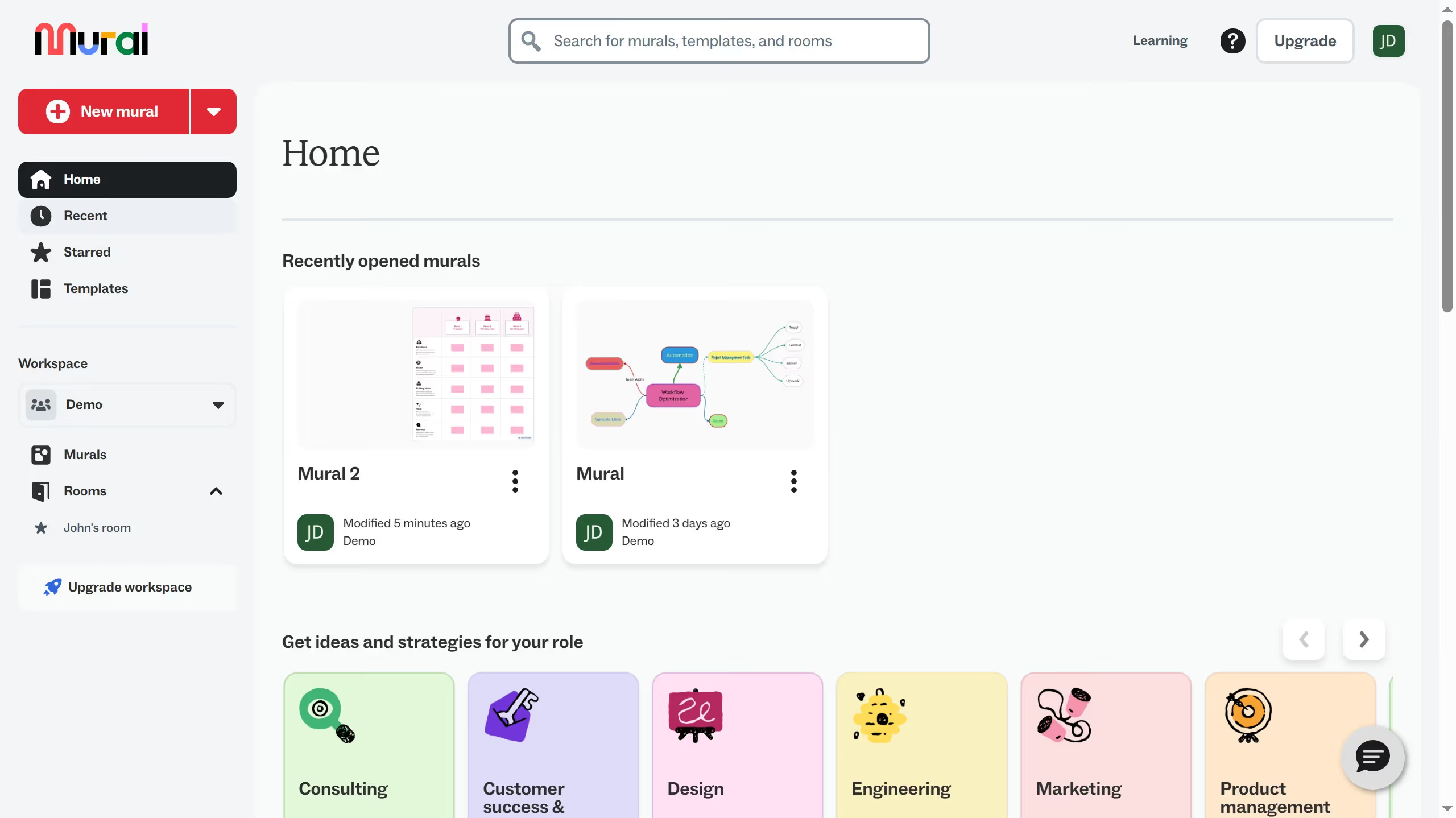
  1. First click on "Murals" section in the sidebar
  2. Then click on the "Mural" card to open it
  3. Next click on "Mural options" dropdown button in the top toolbar
  4. Then click on "Mural options" menu item in the dropdown
  5. Next click on "Mural settings" submenu item
  6. Then click on a canvas color option in the Canvas color section
  7. Finally click on "Save changes" button to apply the changes

Create your own interactive guide with Guideflow

Why should you change canvas color in Mural

Mural is an intuitive digital workspace designed to enhance visual collaboration and creativity.

Changing the canvas color in Mural is a standout feature that significantly impacts how ideas are visualized and organized. It enables users to set the tone for brainstorming sessions, aligning colors with themes or moods.

This feature enhances focus and distinguishes different sections of a project, ensuring clarity and enhancing comprehension among team members. Tailoring your workspace through color customization is not only visually engaging but also facilitates more efficient communication and productivity.

Last update
March 13, 2026
Cursor MariaA cursor points to a button labeled "James."

Create your first demo in less than 30 seconds.