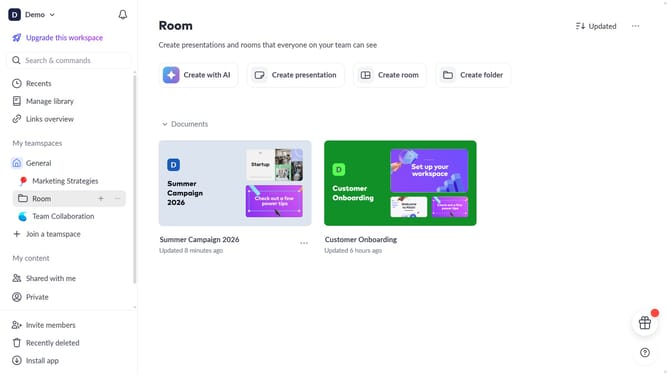
How to apply the Fade In animation to a block on Pitch
Here is how to apply the fade in animation to a block on pitch
- First, open the presentation containing the block you want to animate
- From the left sidebar, select the slide containing the block
- Next, select the block you want to animate (such as a text block, image, shape, or other content block)
- In the right sidebar, click on the "Animate" option
- Then, select the "Enter" tab
- Finally, select "Fade in" from the available animation options
Why should you apply the Fade In animation to a block on Pitch
Pitch is an intuitive platform designed to create stunning presentations with ease.
Enhancing your presentation with the Fade In animation on Pitch is an excellent way to captivate your audience. This feature adds a smooth and professional entrance effect to any block of content, transforming your slides visually while maintaining clarity.
Using the Fade In effect helps in maintaining viewers’ focus, creating suspense, and smoothly transitioning between different points. It's perfect for storytelling and guiding your audience seamlessly through your narrative.
Last update