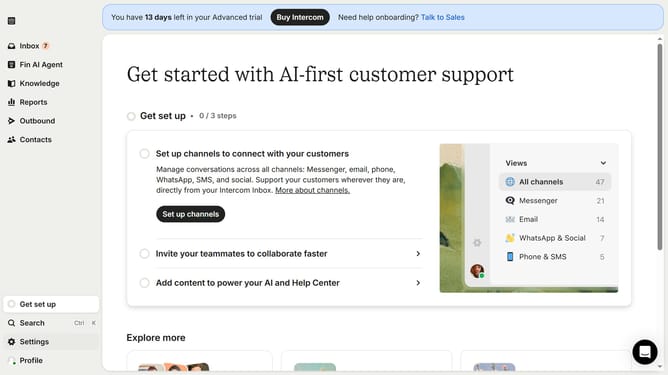
How to add link to an image in an email autoreply in Intercom
Here is how to add link to an image in an email autoreply in intercom
- First click on the "Settings" item in the left sidebar
- Then click on the "Channels" item in the left sidebar
- Next select "Email" from the list of channels
- Then click on the "Email settings" button
- After that click on the "Configure auto reply" toggle
- Then click on the image in the "Email Body" section
- Next click on the "Add a link to this image" icon
- Then enter a link in the "Enter a link" input field
- Finally click on the "Save changes" button
Why should you add link to an image in an email autoreply in Intercom
Intercom is a versatile platform that enhances customer communication and engagement.
One of its efficient features is the ability to add a link to an image within an email autoreply. This offers a seamless way to direct recipients to relevant resources, like product pages or informative content, right from their inbox.
Enhancing your email autoresponses with clickable images not only makes your communication visually appealing but also drives higher engagement and interaction with your audience, leading to better customer experiences.
Last update