How to add days for a monthly running schedule for Google Sheets scenario in Make
Here is how to add days for a monthly running schedule for google sheets scenario in make
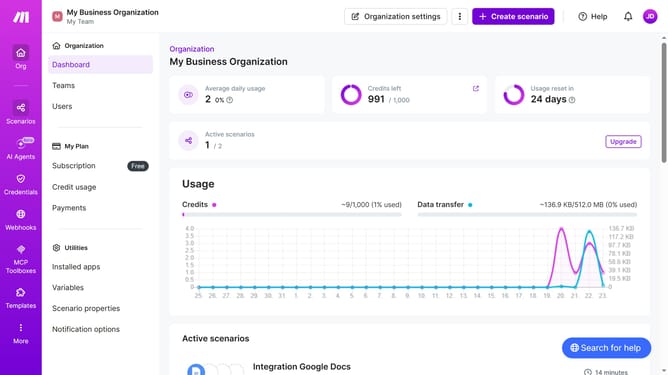
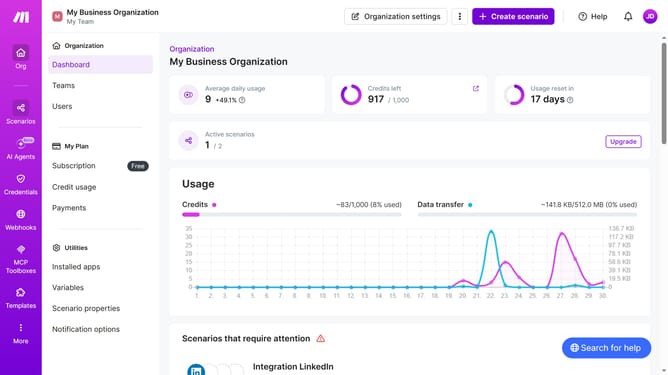
- First click on "Scenarios" item in the left sidebar
- Then click on Google Sheets scenario to open it
- Then click on "Options" button in the top right corner
- Then select "Scheduling" from the dropdown menu
- Then click on the "Days" dropdown
- Then select a checkbox from the list of days
- Then click on another checkbox next to a number
- Finally click on the "Save" button
Why should you add days for a monthly running schedule for Google Sheets scenario in Make
Make is a powerful tool that automates workflows to enhance productivity effortlessly.
Integrating the feature to add days for a monthly running schedule in Google Sheets within Make streamlines your fitness planning, enabling seamless updates and adjustments with minimal manual input.
By automating this process, users save time, maintain consistent tracking, and enhance their overall productivity.
This approach not only eliminates repetitive tasks but also ensures that your running schedule is always up-to-date and error-free.
Last update