How to add comments to a subtask in ClickUp
Here is how to add comments to a subtask in clickup
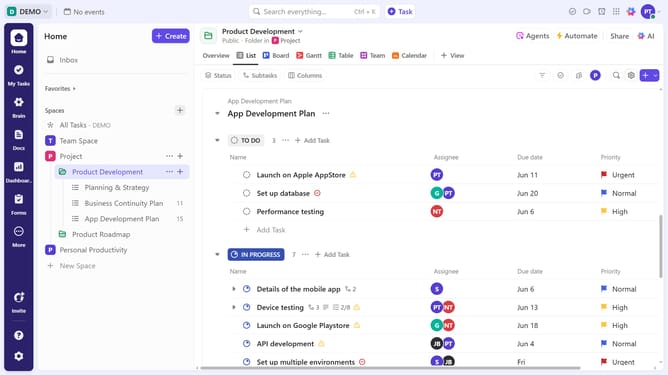
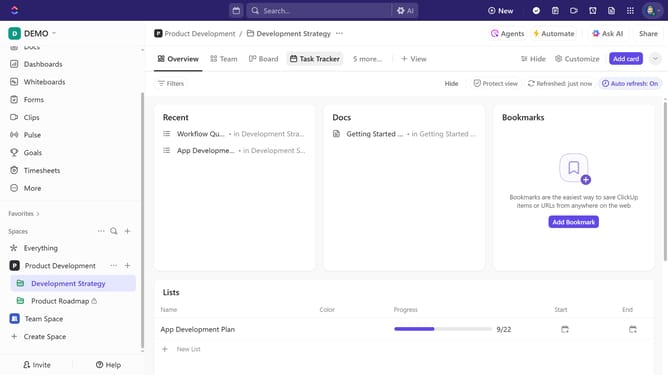
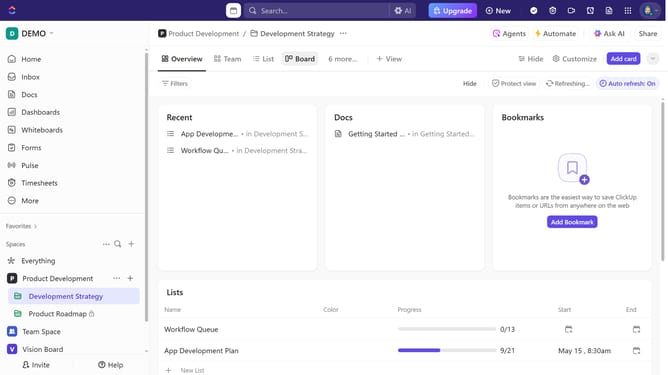
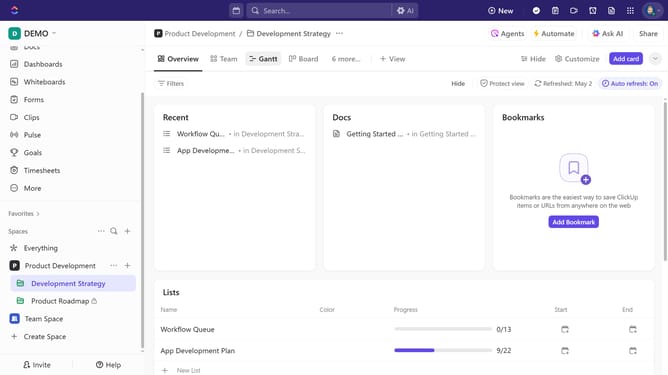
- First in the left sidebar, under the relevant Space, click on the Folder or List that contains the subtask
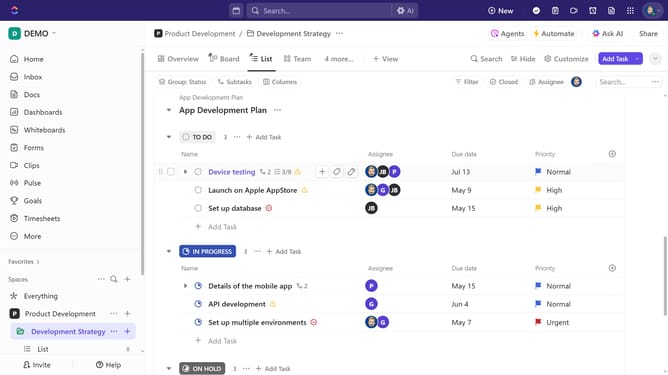
- Then in your preferred view, locate the task containing the subtask you want to comment on
- Next click on the subtasks dropdown menu under the task
- Then from the expanded list, click on the subtask to view its details
- In the task details view, click on the "Activity" button in the top-right corner of
- Next click in the comment input field that says "Write a comment..."
- Then enter your comment text in the comment field
- You can mention team members using the "@" symbol and format it using rich text, attach files, etc
- Finally click the "Send" button to submit your comment
Why should you add comments to a subtask in ClickUp
ClickUp is an all-in-one productivity platform designed to bring teams together for more efficient and collaborative work.
Adding comments to a subtask in ClickUp enhances communication by allowing team members to share insights directly at the task level. This feature keeps discussions relevant and accessible, ensuring nothing crucial gets lost in the shuffle of broader conversations.
Utilizing comments on subtasks fosters transparency and encourages collaboration by making it easier to address issues and maintain clarity. This direct line of communication improves teamwork and task management efficiency.
Last update