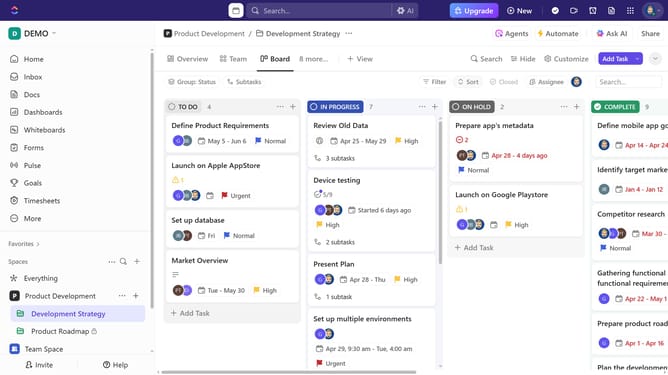
How to invite collaborators to a public folder in ClickUp
Here is how to invite collaborators to a public folder in clickup
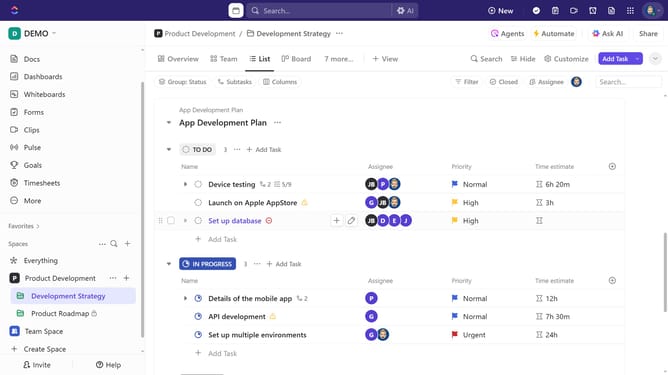
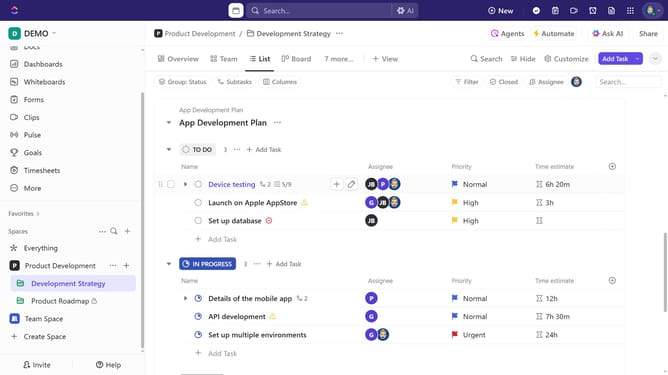
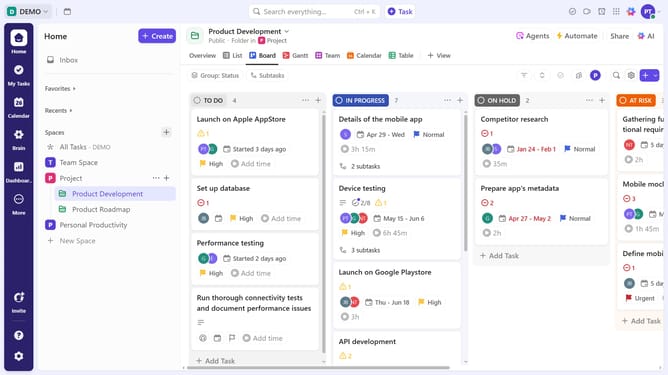
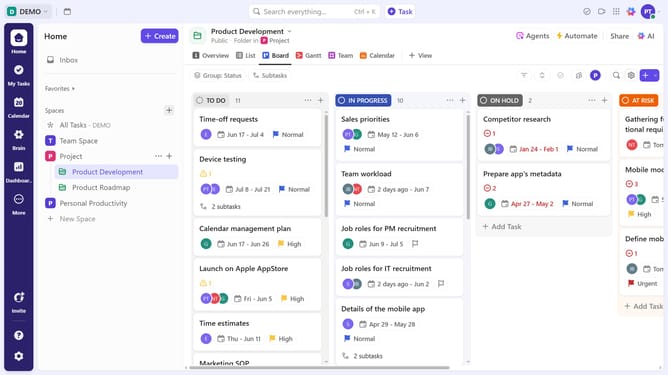
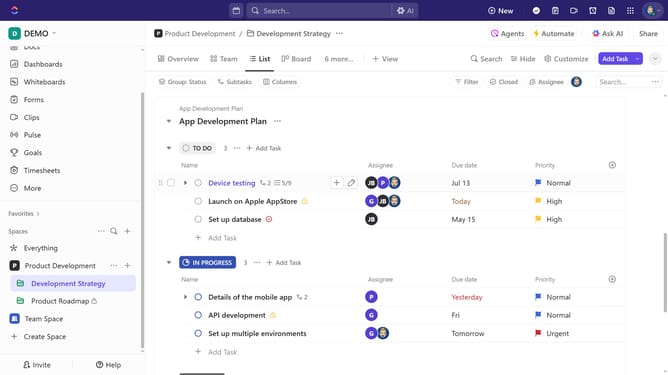
- First in the left sidebar, locate the public folder you want to share
- Next click on the options menu (three dots) next to it
- Click on the "Sharing & Permissions" button in the dropdown menu
- Next, click "Copy link" to generate a shareable link, then send it to the people you want to invite
- You can also click on the "Invite by name or email" field in the sharing dialog
- Enter the email addresses of the people you want to invite
- Click the suggested email to add it as a recipient
- To add another recipient, click again on the "Invite by name or email" field
- Next click on the "Access" dropdown menu to set permissions level
- Select permissions from the expanded permissions menu
- Finally, click the "Send Invite" button to share the folder via email
- The invitation sent, collaborators will gain access to the public folder once they accept the invitation
Why should you invite collaborators to a public folder in ClickUp
ClickUp is a versatile project management tool designed to enhance productivity and streamline workflows.
Inviting collaborators to a public folder in ClickUp is a seamless process that enhances team collaboration. This feature allows you to easily extend access to stakeholders and team members, ensuring everyone is on the same page.
Using this functionality fosters a transparent and inclusive working environment by allowing team members to contribute and stay informed. It makes project management efficient and keeps communication lines open, boosting productivity and team synergy.
Last update