Asana
Asana is a work management tool for planning, tracking, and executing projects.
Website
Industry
Project Management
Share this article:

How to add attachments in board view in Asana

Here is how to add attachments in board view in asana

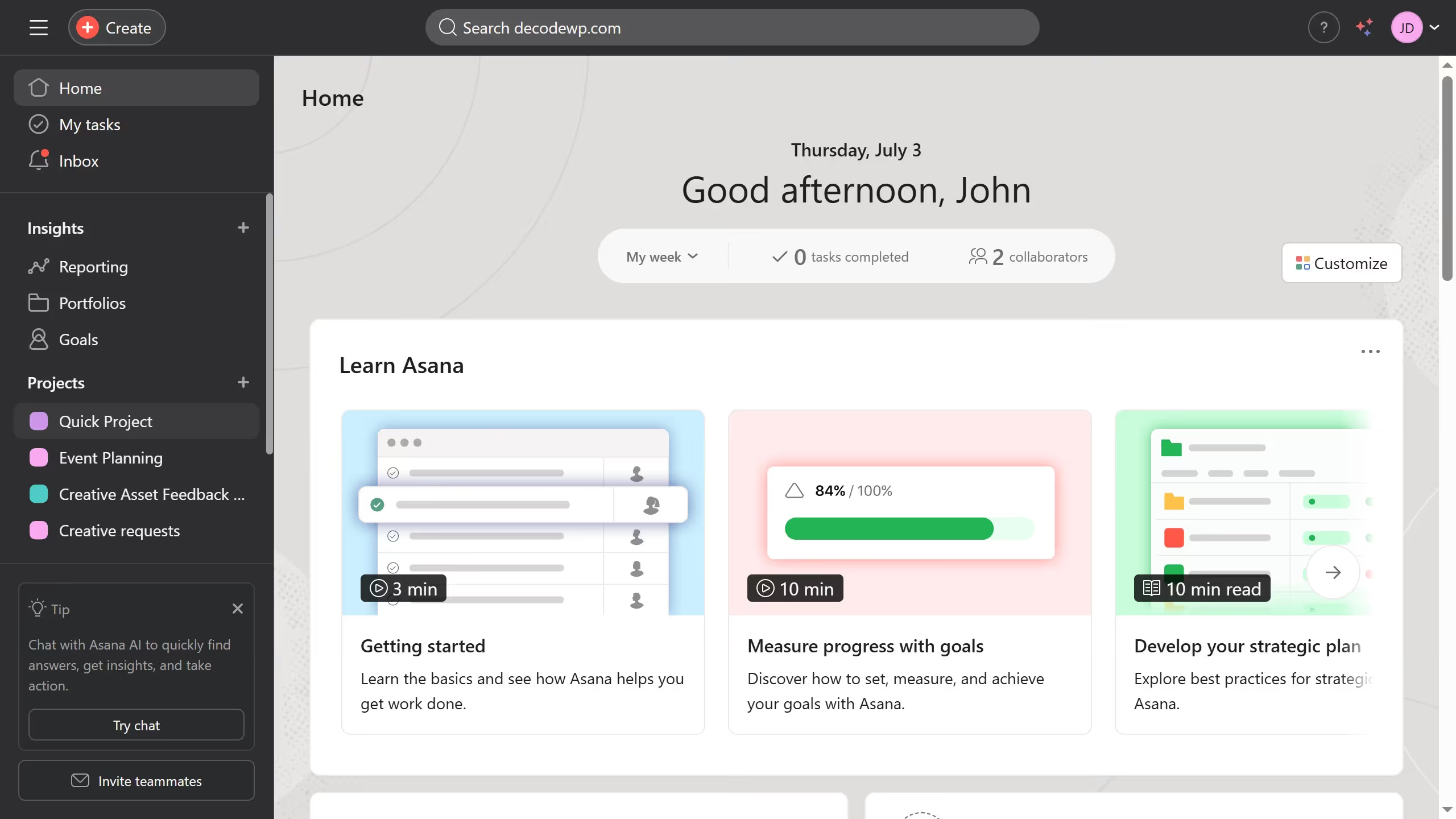
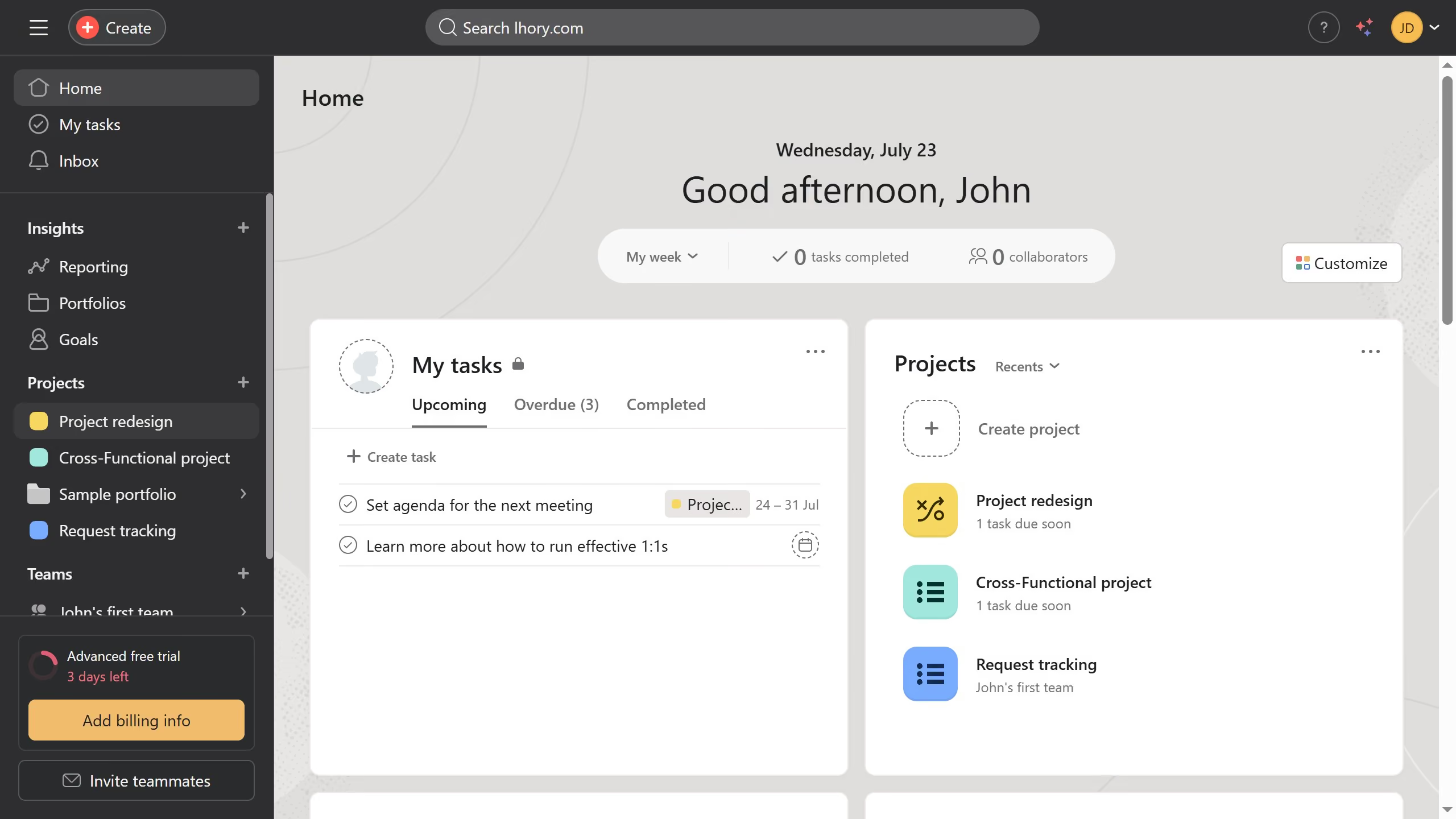
  1. First click on "Project redesign" project in the left sidebar
  2. Then click on "Board" tab in the project view header
  3. Next click the task where you want to add attachments in board view
  4. Then click on the "Attachment" icon in the task details panel
  5. Next click on "Choose a file" button in the upload dialog and then upload the attachment you want to add
  6. After uploading the image appears in the task details just scroll down until you see the attachment
  7. Asana automatically saves the attachment you just added you will see the attachment in the details panel and in board view

Create your own interactive guide with Guideflow

Why should you add attachments in board view in Asana

Asana is a cutting-edge project management tool designed to enhance team collaboration and efficiency.

Adding attachments in Board View within Asana boosts the visual and functional organization of your project tasks, allowing teams to streamline file sharing seamlessly.

This feature eliminates the hassle of searching for relevant documents, enabling project members to have everything they need right at their fingertips, promoting smoother workflows and cohesiveness.

Last update
June 16, 2026
Cursor MariaA cursor points to a button labeled "James."

Create your first demo in less than 30 seconds.