How to add a string column in a data table in n8n
Here is how to add a string column in a data table in n8n
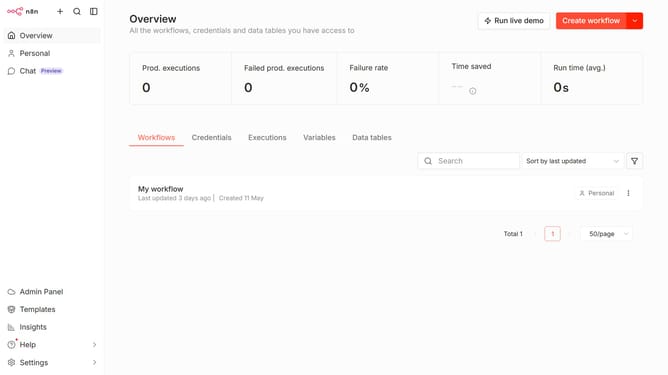
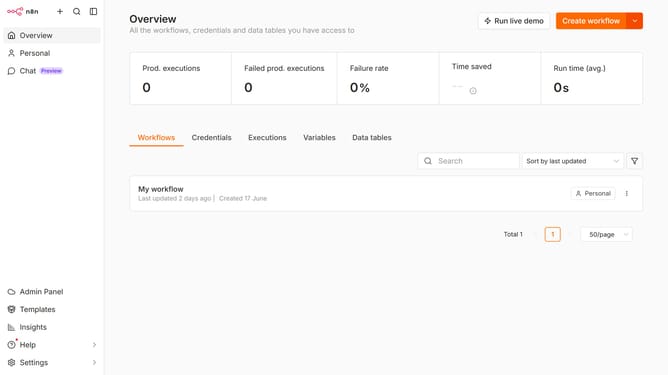
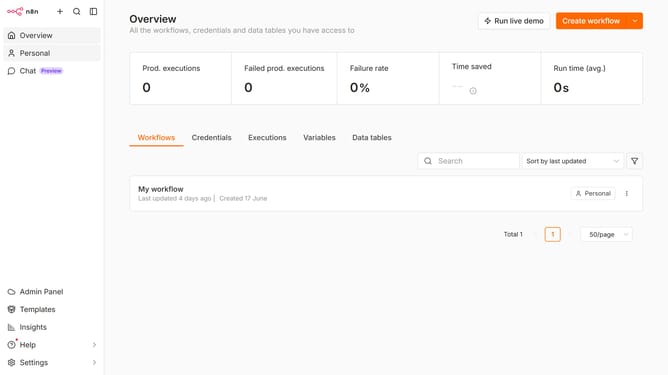
- First click on "Personal" tab in the left sidebar.
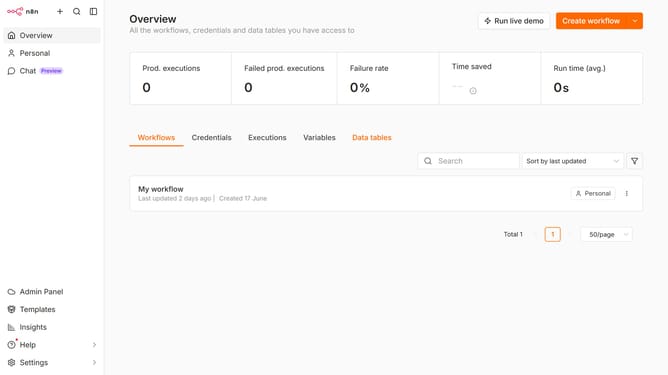
- Then click on "Data tables" tab in the main panel.
- Next, click data table that you want to edit in the main panel.
- Then click on the "Add Column" button in the top menu.
- Now the "Name" input field is visible, type the column name into the input field.
- Then click the "Type" dropdown.
- Next, select "string" from the "Type" dropdown menu.
- Finally click on the "Add Column" button.
Why should you add a string column in a data table in n8n
n8n is an open-source workflow automation tool that empowers users to integrate various services and automate repetitive tasks with ease.
Adding a string column to a data table in n8n enhances data management by allowing users to append descriptive text to datasets. This feature is particularly beneficial when you need to include additional context or categorize entries efficiently.
By utilizing this capability, users can improve the clarity and organization of their data, which in turn, facilitates better decision-making and streamlined workflows.
Last update