How to update a task from a Timeline view in ClickUp
Here is how to update a task from a timeline view in clickup
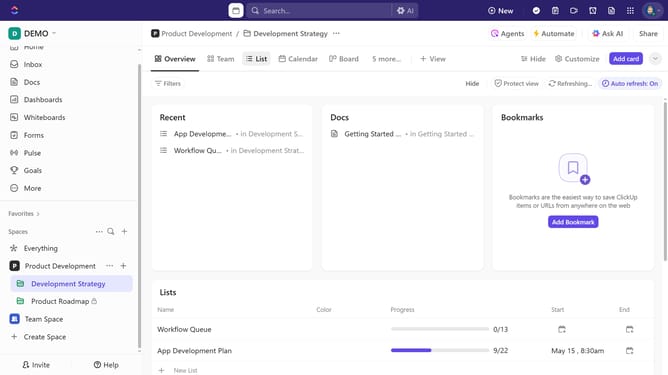
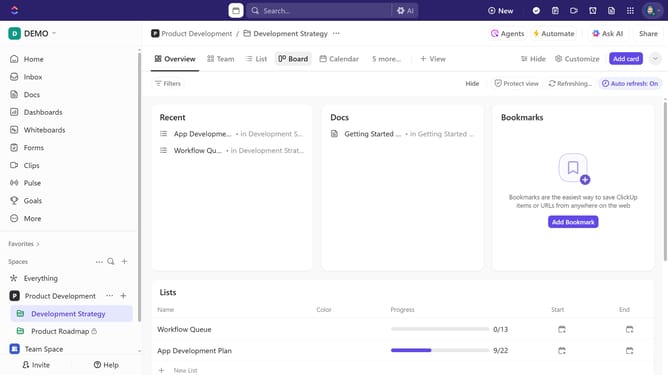
- First navigate to the Timeline view from the views bar
- Next locate the task you want to update in the timeline view
- Click and drag the left end of the task to adjust the start date
- To adjust the due date, click and drag the right end of the task
- You can also click and drag a task to set its start and due dates. Drag it into another group to update its grouping by value
- Finally, to make further updates to the task, open it and modify details such as assignees, dates, priorities, and other relevant settings
Why should you update a task from a Timeline view in ClickUp
ClickUp is a powerful project management tool designed to make your work more organized and efficient.
Updating a task from the Timeline view in ClickUp allows for seamless modifications directly within your project schedule.
This feature empowers users to manage deadlines and priorities dynamically, ensuring projects remain on track even as circumstances change.
By utilizing this view, team members can swiftly adapt to new information and effortlessly align their efforts with the overarching project goals.
Last update