Zoom
Zoom is a unified communications platform for video, phone, chat, and webinars. It helps teams connect, collaborate, and boost productivity with powerful, intuitive tools.
Website
Industry
Collaboration
Share this article:

How to tag someone in a comment in Zoom Docs

Here is how to tag someone in a comment in zoom docs

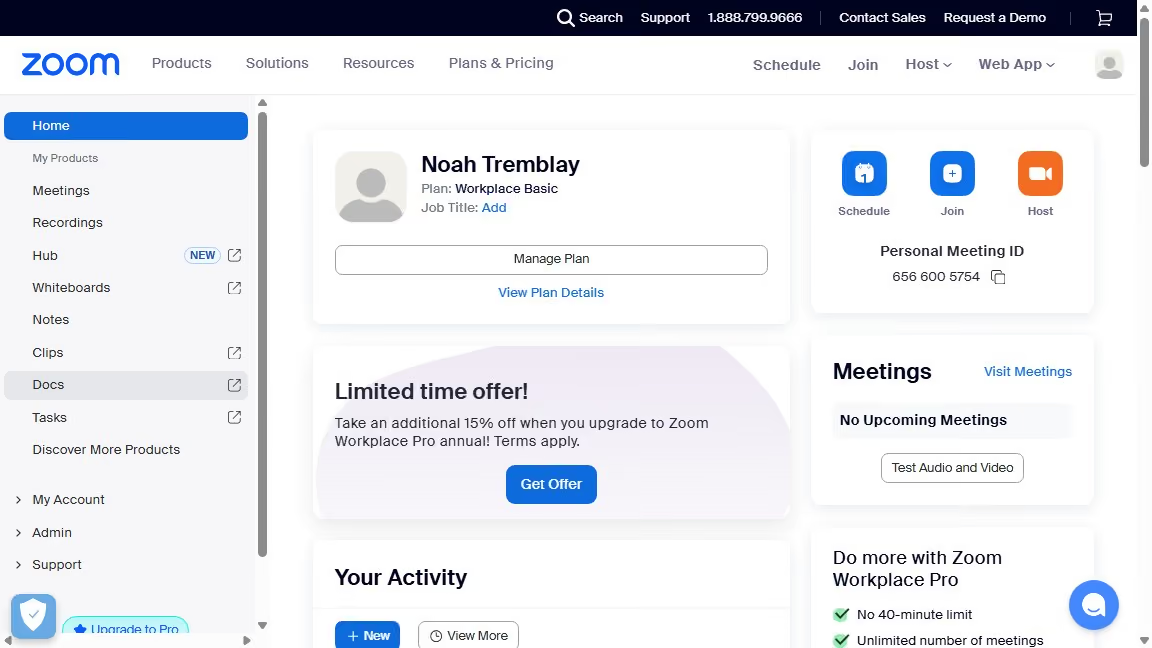
  1. First click on "Docs" in the left sidebar menu
  2. Then open the document where you want to tag someone in a comment
  3. Next click on the "Comments" button in the top right corner
  4. Click on the "Reply..." field in the comments panel
  5. Click the "@" mention button in the reply field
  6. Select the collaborator’s name to tag them in your comment
  7. Finally click the "Send" button (blue circle with arrow) to post the comment

Create your own interactive guide with Guideflow

Why should you tag someone in a comment in Zoom Docs

Zoom is a versatile communication platform empowering seamless collaboration across the globe.

When working in Zoom Docs, the ability to tag someone in a comment enhances direct interaction and boosts team productivity. This feature allows users to mention and notify specific team members directly within the document.

Utilizing this feature encourages prompt feedback and clarifications, ensuring everyone stays on the same page and projects progress efficiently. It enriches collaborative workflow, fostering a more connected and responsive team environment.

Ultimately, tagging in Zoom Docs brings precision and efficiency to teamwork, making collaboration a breeze.


Last update
February 3, 2026
Cursor MariaA cursor points to a button labeled "James."

Create your first demo in less than 30 seconds.