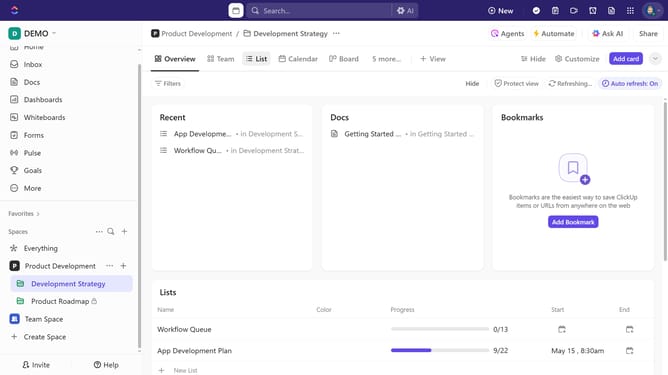
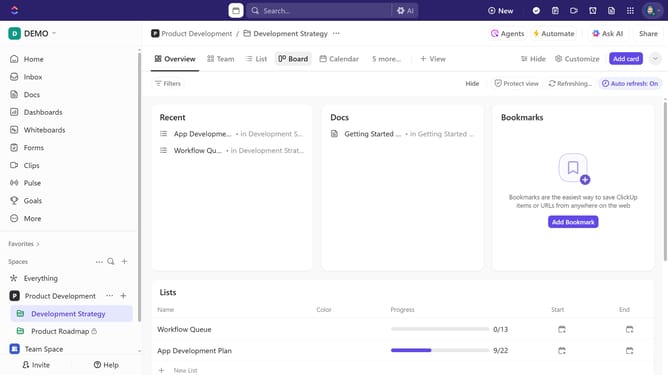
How to start a timer from the Quick Action menu in ClickUp
Here is how to start a timer from the quick action menu in clickup
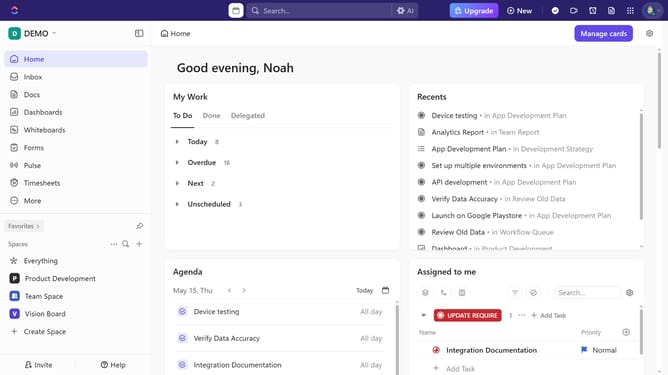
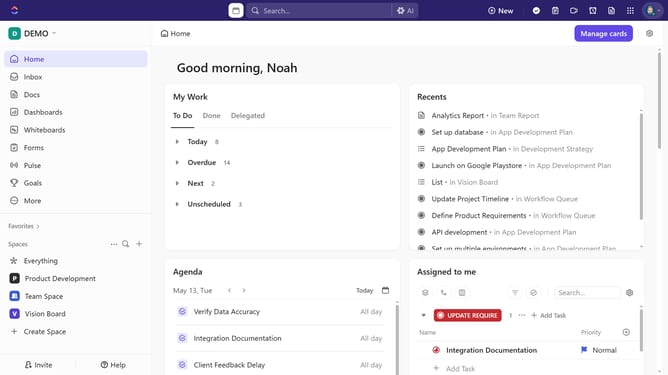
- First click the Quick Action menu in the toolbar next to your avatar
- Click on the "Track Time" option in the quick actions menu
- Next click on the "Select task" dropdown in the time tracking panel
- Then, from the task list, select the task where you want to track time
- Finally click on the "start timer" button in the time entry popup
- Stop the timer when you're done, and the tracked time will be saved to the task
Why should you start a timer from the Quick Action menu in ClickUp
ClickUp is a powerful productivity platform designed to streamline workflow and enhance task management.
One of its standout features is the ability to start a timer directly from the Quick Action menu, which simplifies tracking time spent on tasks.
This feature is beneficial for maintaining focus and boosting efficiency by ensuring that every minute is accounted for in the most user-friendly way.
By leveraging this tool, users can enhance accountability and optimize their project planning and resource allocation.
Last update