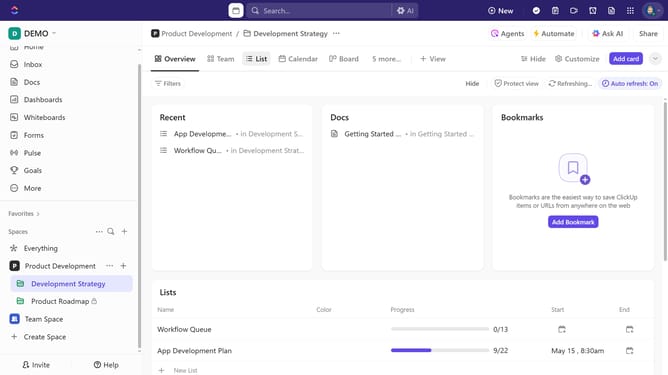
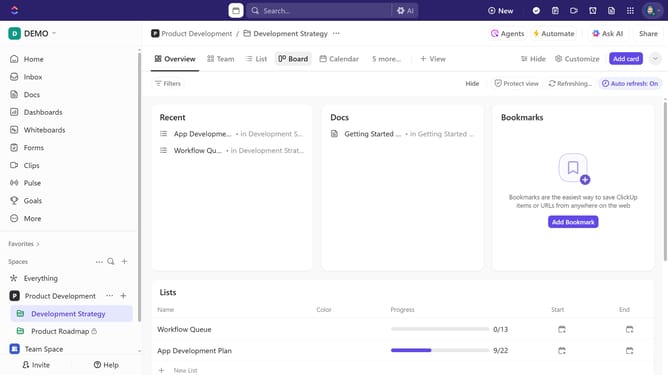
How to start a timer from Board view in ClickUp
Here is how to start a timer from board view in clickup
- First navigate to Board view from the views bar at the top
- Ensure the "Time Tracked" field is added to your Board view
- Next locate the task card where you want to track time
- Then click on "Add time" button on the task card
- Finally click on the "start timer" button in the time entry popup
- Stop the timer when you're done, and the tracked time will be saved to the task
Why should you start a timer from Board view in ClickUp
ClickUp is an all-in-one productivity platform designed to make work management seamless and efficient.
Starting a timer from the Board view in ClickUp enhances focus by linking time tracking directly to visual task management. With just a click, users can begin tracking time without leaving their streamlined workflow, ensuring tasks within sprints or projects are efficiently managed.
This feature not only promotes accountability but also allows team members to gain insights into task duration, encouraging effective time allocation and productivity growth.
Last update