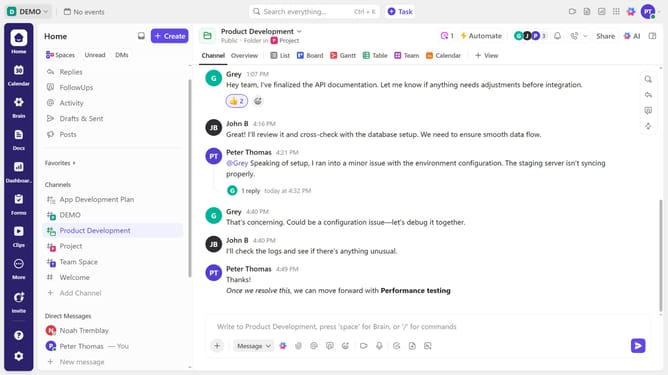
How to share a private Calendar view in ClickUp
Here is how to share a private calendar view in clickup
- First navigate to the Space, Folder, or List where the private Calendar view is located
- Then click on the private Calendar view you want to share
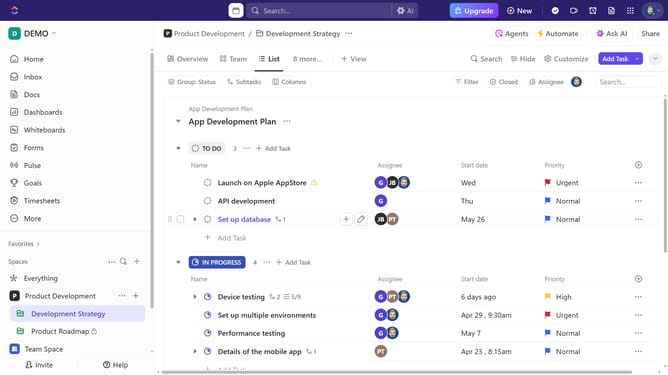
- Click on "Customize" button in the top right toolbar
- In the customize view panel, click on the "Sharing & Permissions" option
- In the sharing dialog, copy the "Private link" to share with team members—no invite needed
- To share with anyone, toggle the "Share link with anyone" option
- Then click on the "Copy public link" button
- You can also click on the "Invite by name or email" input field to invite new users
- To share the private view with users, toggle the "Share" button next to the their name or email
- Your private Calendar view is now shared, allowing selected users to access it while maintaining control over visibility and permissions
Why should you share a private Calendar view in ClickUp
ClickUp transforms productivity by centralizing tasks, timelines, and communication in one platform.
Sharing a private Calendar view in ClickUp streamlines collaboration by allowing you to selectively share project timelines while keeping sensitive data discreet.
This feature ensures team alignment and transparency, fostering better teamwork without overloading everyone with unnecessary information.
Ultimately, it enhances focus, efficiency, and the ability to meet deadlines effectively.
Last update