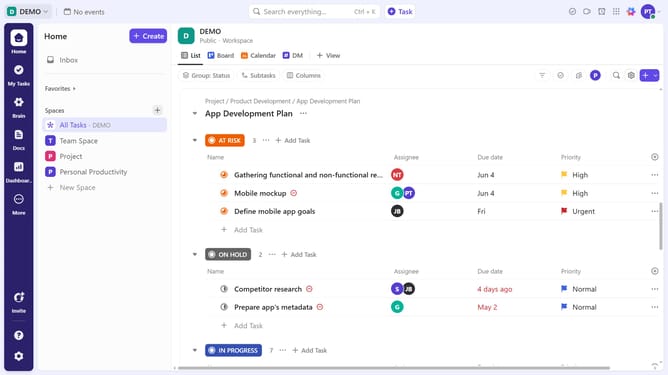
How to set a reminder for a subtask in ClickUp
Here is how to set a reminder for a subtask in clickup
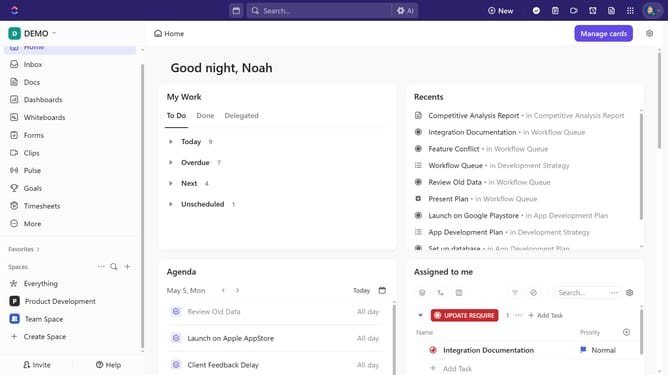
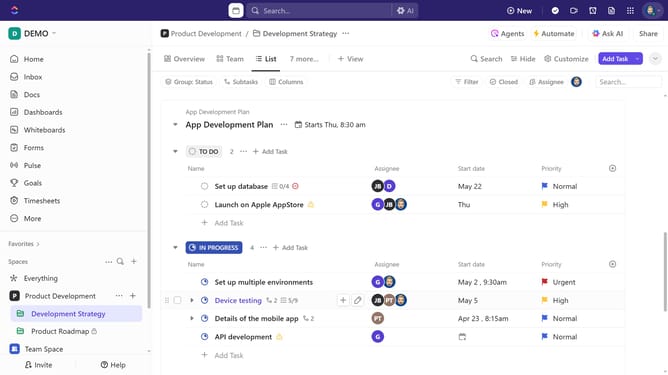
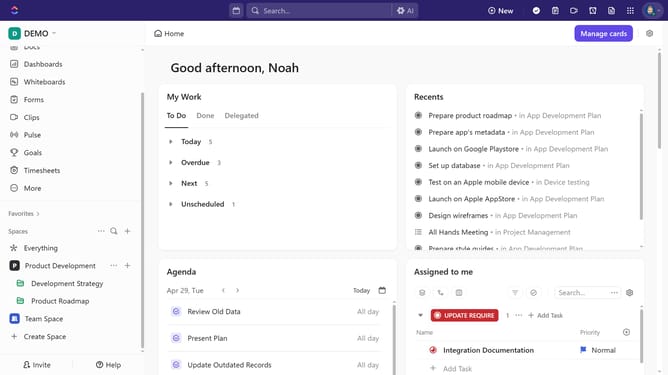
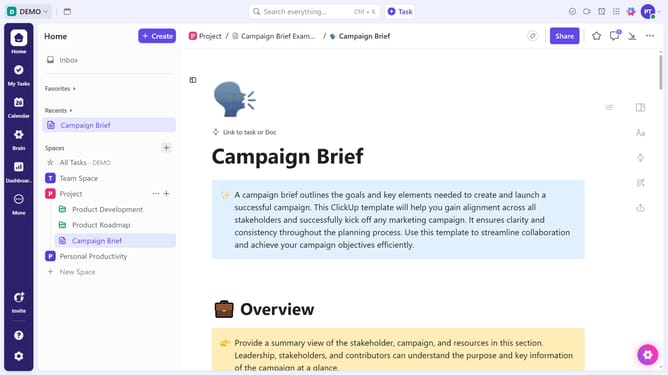
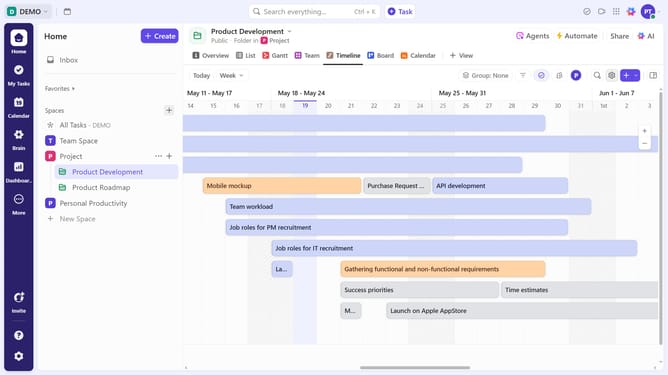
- First in the left sidebar, under the relevant Space, click on the Folder or List that contains the subtask
- Then locate the task containing the subtask you want to set a reminder
- Next click the expand subtasks button next to the task
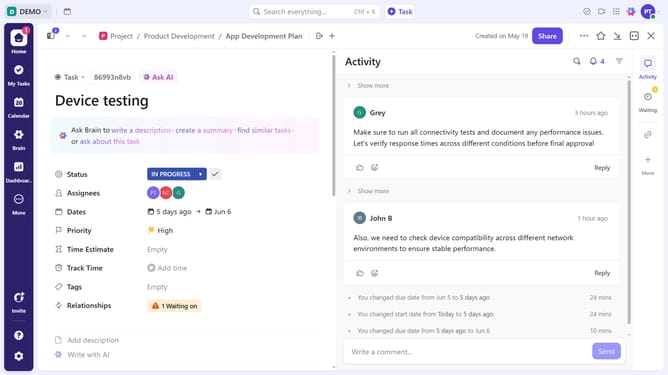
- Then click on the subtask to open its details
- In the subtask details panel, click on the more options menu (three dots) in the top-right corner
- Select the "Remind me" option from the dropdown menu
- In the reminder date selector, choose the desired date for the reminder
- Next click "Add time" to specify when the reminder should trigger
- Select your preferred time from the time picker dropdown
- If needed, set up a recurring reminder by clicking "Set Recurring" at the bottom of the reminder panel
- Then adjust settings such as the repeat frequency (daily, weekly, etc.) and specific dates
- Finally click "Save" button to apply your settings
Why should you set a reminder for a subtask in ClickUp
ClickUp is a versatile productivity platform designed to streamline workflows and boost team efficiency.
One of its standout features is setting reminders for subtasks, ensuring nothing falls through the cracks. By setting reminders, users can effortlessly keep track of even the smallest tasks, helping maintain seamless project progression.
This feature is particularly beneficial in complex projects where subtasks often demand as much attention as primary tasks. Utilizing reminders ensures timely completion and enhances overall productivity, making project management a breeze.
Last update